
Written by Jesper
Edited on
2 August 2023
·
13:36
How do you remove accounts from an Android smartphone?
When you send your smartphone for repairs, you're required to remove all accounts from your smartphone. You should also remove your accounts when you resell or trade in your device. That way, no one can access your information. In this article, we'll explain how to remove your accounts from your Android smartphone in 3 steps.

Remove accounts from your Android smartphone
Make a backup before you start. After, you can remove your accounts from your Android smartphone in a couple of steps.
- Step 1. Make a backup
- Step 2. Go to settings for accounts
- Step 3. Remove your accounts

Step 1: make a backup
When you remove your accounts from your Android smartphone, some information may be lost. That's why you should always make a backup. That way, you can store all your information online. When you reconnect the account to a smartphone afterwards, your device will restore all of this information. In our article, you can read how to back up your Android smartphone step by step.
Step 2: go to settings for accounts
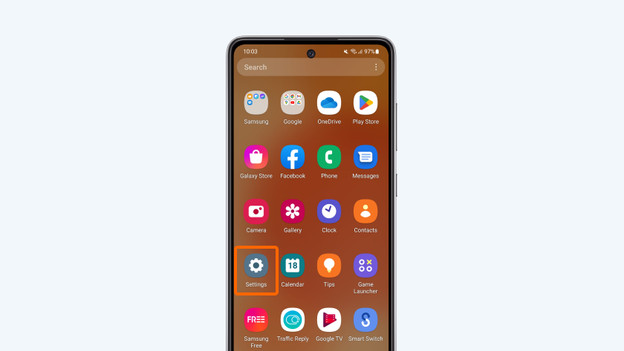
- Go to Settings.
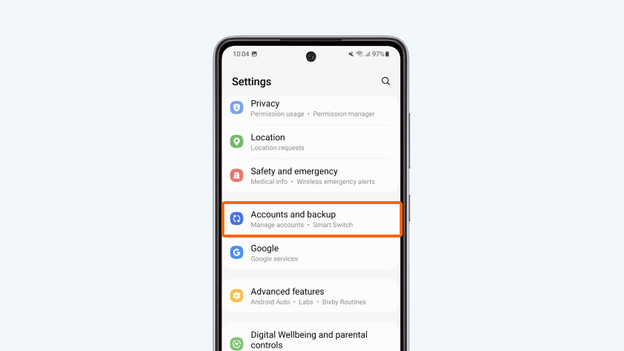
- Scroll down and choose Accounts and backup.
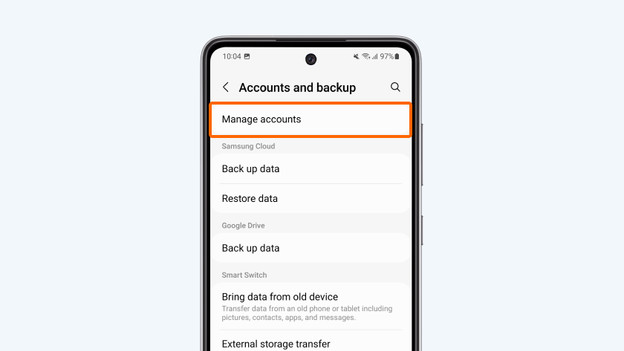
- Tap Manage accounts.
Step 3: remove your accounts
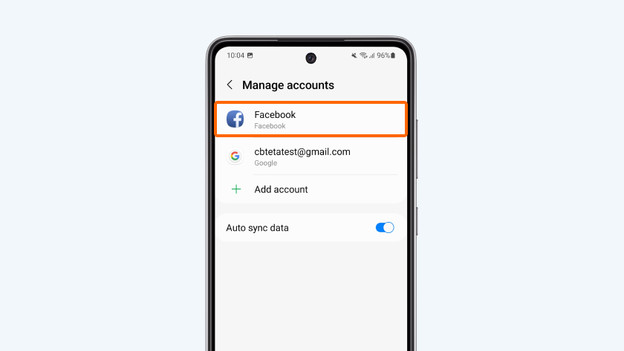
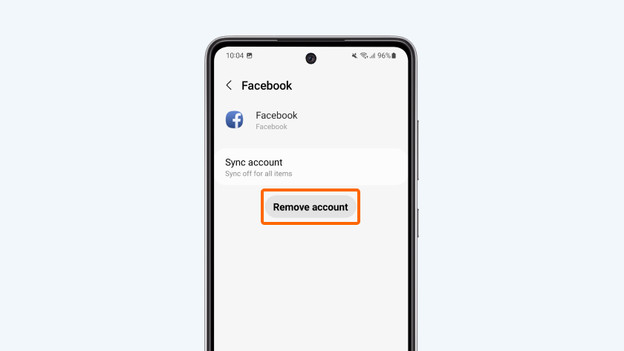
- Tap the account you want to remove from the smartphone.
- Choose Remove account.
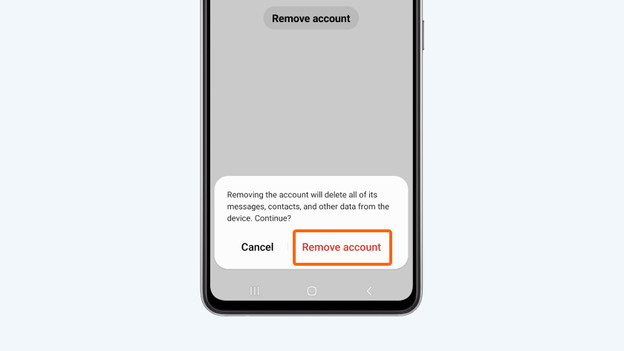
- Tap Remove account again to confirm.
- Repeat these steps for all of your accounts.
Article by Jesper
Smartphone Expert.
