Written by Rowan
Edited on
19 August 2026
·
07:31
5 tips for when your MacBook keyboard doesn't respond
Doesn't the keyboard of your Apple MacBook respond anymore? Luckily, there are multiple solutions for this. Removing some dirt may already do the trick, for example. In this article, you can read how to clean your keyboard and more tips.

How do you solve problems with your MacBook keyboard?
Are you sure your MacBook doesn't have a butterfly keyboard? There are multiple possible solutions for your problem.
- Tip 1. Clean your keyboard
- Tip 2. Check your settings
- Tip 3. Check for updates
- Tip 4. Remove recently downloaded apps
- Tip 5. Connect an external keyboard
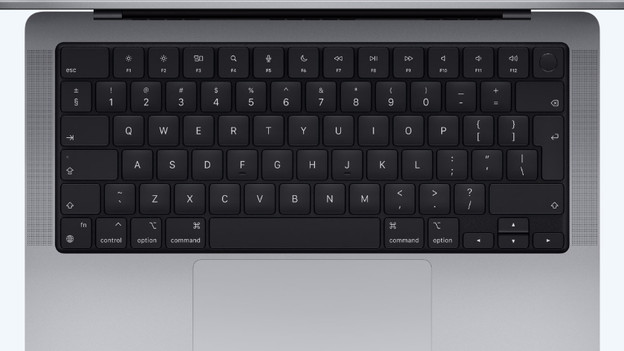
Tip 1: clean your keyboard
It's not very smart, but we all eat a crumbly croissant, cookies, or chips above our keyboard. Crumbs block the keys, so they don't work (properly) anymore. The best way to clean your keyboard is with compressed air.
- Hold your MacBook in a 75° angle.
- Clean the keyboard with compressed air. Move the air duster from left to right.
- Tilt your MacBook to the right and spray clean the keyboard from left to right again.
- Repeat this while you tilt the MacBook to the left.

Tip 2: check your settings
Via System Settings, you can set various things. Before you know it, you accidentally click the wrong button.
- Go to the Apple logo and click on System Settings.
- Click on Accessibility and Keyboard.
- Click on the tab Hardware and check if Activate Slow Keys is turned off.
- Return to Accessibility and click on Cursor Control.
- Click on the tab Alternative Control Method and check if Activate Mouse Keys is turned off.
- Return to System Preferences and click on Keyboard. Check if the right keyboard has been selected under the tab Input Sources.
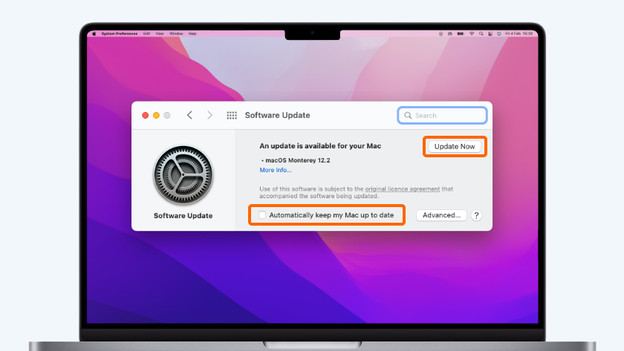
Tip 3: check for updates
It's wise to use the latest version of the macOS system. An update sometimes brings great visible changes, but it fixes small invisible problems much more often.
- Go to the Apple logo and click on System Preferences.
- Click on Software-update.
- Your MacBook will now look for available updates. If an update is available, install it.
- Click on Update my Mac automatically to always have the latest version of macOS on your MacBook.
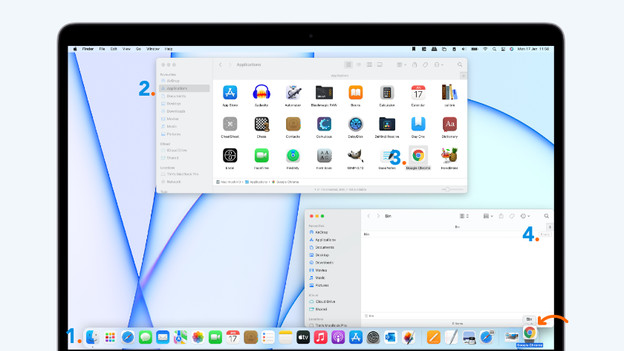
Tip 4: remove recently downloaded apps
Did the problem occur after you installed a new program? Remove this program. Sometimes, a new program causes unexpected problems.
- Open Finder.
- Click on Apps.
- Look for the last app you installed and drag it to Trash.
- Open Trash and click on Empty.

Tip 5: connect an external keyboard
Of course, we know this isn't a solution. But if the external keyboard works, you know for sure it's not because of the settings. It probably has something to do with the hardware of your MacBook. In that case, it's recommended to visit on of our stores. Our Apple experts are happy to help you further.