Written by Lucas
Edited on
1 October 2025
·
11:07
How do you reset your Philips TV?
There are various possible reasons to reset your Philips television to factory settings. You may want to sell your TV, or you've adjusted settings that aren't easy to change back. In this article, we'll explain how to reset the settings of your TV to factory settings.

Step 1: go to the home screen
Go to the home screen of the TV. You can do this by pressing the home button on your remote. You can recognize this button by the icon that looks like a house.
Step 2: go to settings
In the home screen, you can see your downloaded apps and recently used services. At the top right of the screen, you'll see 3 icons, 1 of which is a gearwheel. Go to the gearwheel and press it. This is how you open the settings. With Philips TVs with a basic smart platform, you can find the settings menu in the list of options at the bottom of the screen.
Open the settings menu via the gearwheel on the top right of the screen.

Step 3: go to general settings
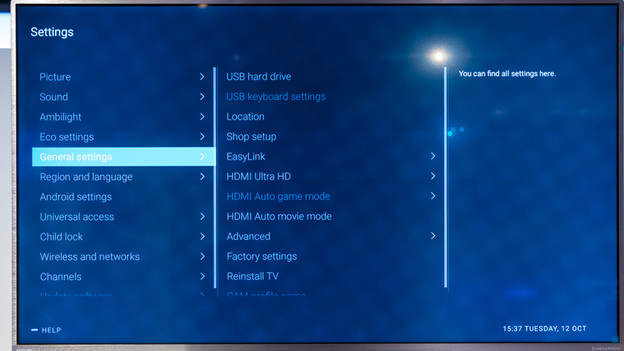
In the menu on the left, you can see different settings appear. To rest your Philips television to factory settings, you need the general settings.

Step 4: find the factory settings
You should see Factory settings under the general settings. Press this option and the option to reset the television will appear on your screen.

Step 5: confirm the reset
Press OK and the television will now reset to the factory settings. The image, sound, and Ambilight will reset to the default values.
Black screen? Here's how to solve it!
Does a certain source on your television not provide a good image? You can't reset the TV based on this step-by-step plan. This isn't a reason to panic, because we'll give you a number of tips to fix the black screen in the article below. Still don't have an image after that, please contact the customer service.
Article by Lucas
Television Expert.