Written by Thomas
Edited on
19 August 2026
·
07:31
3 tips for when the touchscreen of your iPad doesn't work
The screen of your iPad doesn't respond to touch anymore. This can be caused by a dirty screen or software problems. In this article, you can read 3 tips to solve screen problems.
Get started with screen problems
Your iPad doesn't respond to touch, or doesn't respond as well, when the screen is dirty or the tablet cover touches part of the screen. So clean your screen and take the iPad out of the cover before you go through the following steps.
- charge iPad
- force restart iPad
- restore iPad via your computer

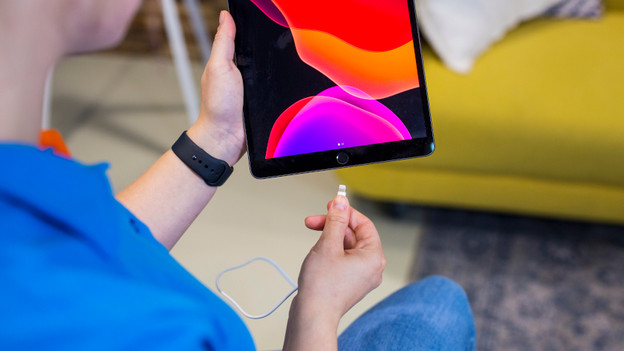
Tip 1: charge your iPad
Charge your iPad via the socket for at least 1 hour and restart it. While charging, a charging icon should appear on the screen. Isn't the icon appearing? Check if everything is connected properly and if there's any dirt in the charging port. You can even try to charge the iPad with a different cable.

Tip 2: force restart iPad
With a forced reset, files and data are preserved. Follow these steps to perform a forced reset on your Apple iPad:
- Briefly press the volume-up button.
- Briefly press the volume-down button.
- Press and hold the on/off button until you see the Apple logo.
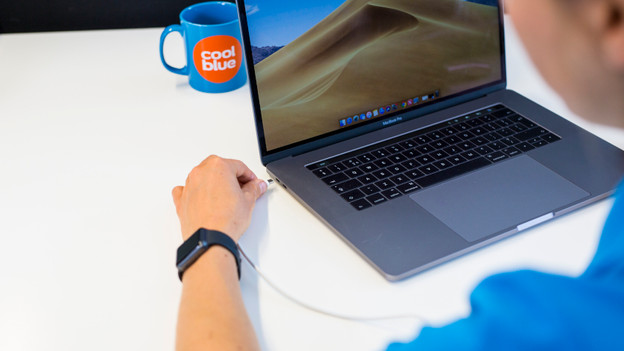
Tip 3: restore iPad via your computer
If the screen of your iPad still won't turn on or if the touchscreen doesn't work, you can restore your iPad with your laptop. To do so, follow these steps:
- Connect your iPad to your laptop and search for the device in iTunes.
- Press the volume-up button and then the volume-down button.
- Press and hold the on/off button until the device reboots.
- Press the on/off button until the restore mode starts.
- Choose the 'update' option.
- Without erasing files, iPadOS will be reinstalled.