Written by Isa
Edited on
12 July 2024
·
15:23
7 tips for when your internet keeps disconnecting
It's pretty annoying if you're often disconnected from the internet. This may happen when your router is placed in the wrong spot, for example. But also after you had to restart your device. We'll list 7 tips for you, so you can avoid being disconnected from the internet.

Improve your internet connection
Are you often disconnected from your internet? Try the following tips:
- Tip 1: restart your device or router
- Tip 2: move your modem or router
- Tip 3: change the frequency
- Tip 4: turn off other devices
- Tip 5: update the software
- Tip 6: add a mesh WiFi
- Tip 7: add a WiFi extender

Tip 1: restart your device or router
It may sound simple, but sometimes your device reconnects to the internet when you restart your laptop or phone. Or you can connect to the internet manually. Disconnect the WiFi connection temporarily or unplug the Ethernet cable from your devices for a minute. The same applies to your router. Unplug your router from the socket. Check if all the lights are off. Plug it back in after 10 minutes. Your devices will reconnect to the internet automatically.

Tip 2: move your modem or router
Thick walls, isolated floors, an aquarium, or a loaded coat rack can interfere with the signal of your modem or router. These devices transmit the internet signal via radio waves, which can't go through everything. That's why you should place your modem or router in a central location in your house. Preferably as high above the ground as possible. The closer you're near the device, the better the internet connection will be.

Tip 3: change the frequency
Most devices in your house use a frequency of 2.4GHz. Too many devices on the same frequency causes a poor connection. Examples of interfering items are baby monitors, microwaves, monitors, and wireless speakers. Set your modem to a frequency of 5GHz. Log in to your router for this. Open a web browser and enter the IP address of your router in the search bar.

Tip 4: turn off other devices
When multiple devices connect to the internet at the same time, the connection will become weaker. That's why you should turn off devices that you don't use, or disconnect them from the internet temporarily. Do you want to turn off your devices automatically or remotely? Use a smart plug.

Tip 5: update the software
Make sure you run the latest software updates on all your devices. These updates often offer solutions and improvements for your device. Your connection will be more stable again after the update.
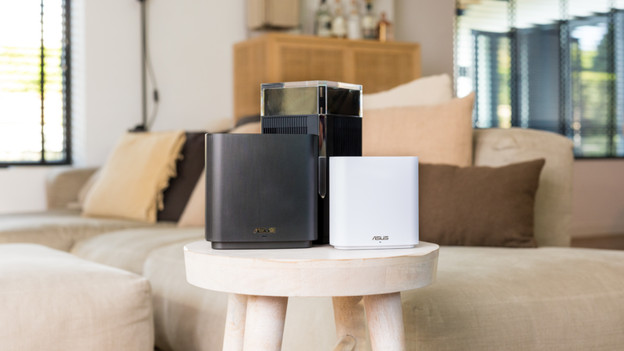
Tip 6: add mesh WiFi
With mesh WiFi, you'll always be connected to the strongest WiFi signal. You'll have multiple stations of the same system in your house that communicate with each other. You don't need network cables for this. With a mesh network, you connect 3 or more routers to each other. That way, you'll have the best internet connection in any corner of your house.
Tip 7: add a WiFi extender
With a WiFi extender, you can improve the WiFi signal. For example with a powerline adapter. This allows you to turn every socket into a network connector. With an access point, you can transmit the internet signal via the network cable. Thanks to this, you don't lose speed.
Article by Isa
Network Expert.