Written by Dewy
Edited on
1 June 2026
·
06:56
This is how you use burst mode on your iPhone
Are you going to do some winter sports soon? Then you'll probably have a go at some stunts with your skis or snowboard. Of course, you want to capture these awesome moves for your friends at home. But photographing moving subjects can be challenging. Fortunately, the iPhone has a useful function for this, the burst mode. In this article, we'll explain how this mode works.
What's the burst mode?
With the burst mode on your iPhone, you take sharp photos of fast-moving objects. When you activate burst mode, your iPhone takes multiple pictures in a row. The newer your iPhone model is, the more pictures per second it takes. Because your phone takes multiple photos in quick succession, you never miss that one unique moment. You can use this function in the standard Camera app on the iPhone 5S or newer.


Use burst mode
The burst mode is activated in iOS by default. Are you looking at the right moment? Swipe left from the shutter and hold your finger on the screen. A shutter sound will follow. Your iPhone quickly takes multiple photos shortly after each other. While you take the photos, you'll see a counter. Once you let go of the shutter, the device will stop taking photos. You can view the captured photos in the Photos app.
View your burst photos
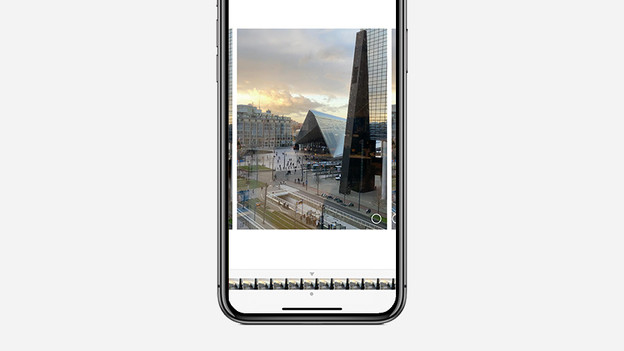
All pictures taken in burst mode are stored in groups in the Photos app. This way, you prevent your reel filling up with the same photos. Now, you can choose which one is the best and delete the rest.
- Open the Photos app.
- Go to the tab Photos or to the album 'All Photos'.
- Open the desired photo. You recognize burst photos by the stack icon.
- Tap 'Select'.

Choose the best photo
Apple always selects the best photo from the series. It considers sharpness, lighting, and brightness. Swipe to the left and right to browse through all burst photos. You select the best photo by tapping on it. A blue check mark now appears to indicate you've selected this photo as your favorite. Now tap 'Done'. Save your favorites and remove the other burst photos so your iPhone storage won't fill up too quickly.

Tips to take the best action photo
The burst mode on your iPhone helps you capture that one special moment. But how do you take such an awesome photo? Find the right angle and don't be afraid to end up in an uncomfortable position. Want to photograph near a slope? Take pictures from a low angle. This way, you emphasize how high the skier or snowboarder jumps. Be careful. Light also plays a big part in a good action photo. Fortunately, there is usually plenty of sun in the mountains so there is enough light to use a higher shutter speed. Want to highlight the person in your picture? Use vignette or an illuminating color filter.