
Written by Lena
Edited on
11 July 2023
·
08:46
How does Zoom work on your Android tablet?
Zoom for Android tablets is an app you can use to stay in contact with friends and family via video calls. You can also use it for conference calls with large groups. In this article, we'll explain how to download Zoom, how to participate in a meeting, and you to plan your own meeting. We'll also tell you how to see all of the participants with the gallery view and how to share your screen with others.

Get started with Zoom on your tablet
We'll show you how Zoom works on your Android tablet with these easy steps:
- Tip 1. Download Zoom
- Tip 2. Participate in a meeting
- Tip 3. Adjust important settings
- Tip 4. Activate the gallery view
- Tip 5. Share your screen

Tip 1: download the Zoom ap
With the free Zoom app, you can make as many 1-on-1 video calls as you want. You can also use it for 40-minute conference calls with up to 100 participants.
- Open the Google Play Store and find 'Zoom'.
- Select 'Zoom Cloud Meetings' and tap 'Install.
Tip 2: participate in a meeting in Zoom
You don't need an account to participate in a video call, but you do need the 'Meeting ID' of the meeting. Use it to log in.
- Open the Zoom app.
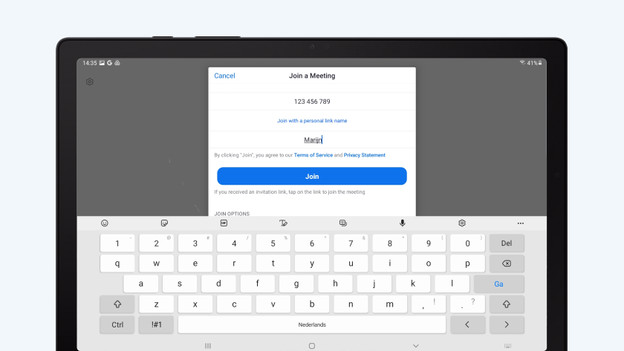
- Tap 'Join a meeting'.
- Enter the meeting ID. If you're not logged in, enter your display name.
- Agree to the terms and conditions and give Zoom access to your microphone and camera.
- Wait for the moderator to let you in.
Tap 'Join a meeting'.
Enter the meeting ID and your display name.

Tip 3: schedule your own meeting
If you want to start a meeting yourself, log in to your Zoom account.
- Tap 'New meeting'. If you want to schedule a meeting, select 'Schedule'.
- Disable 'Join before host' if you don't want participants to enter before you. They'll be waiting in the virtual waiting room until you let them in.
- Set a password so only those you've invited can join.
As soon as your video call has started, you can find more settings under 'More' and 'Security'.
- Deactivate screen sharing if you're the only person who's presenting.
- To prevent strangers from joining your meeting, activate 'Lock meeting'.
Tap 'Schedule meeting.
Adjust important settings for your meeting.
Adjust important settings for your meeting.


Tip 4: activate gallery view
When you talk to other people, you want to see their faces. The Zoom gallery view on tablets shows 4 participants at the same time. Simply swipe to the left during the video call for this. As soon as a participant in the gallery view starts talking, their video is moves to the active page and outlined in a color. This way, you always have a good overview. Don't want to stare at black squares? Hide them with 'Hide non-video participants' under 'View'
Tip 5: share your screen
Sharing your screen allows you to easily show your conversational partner something. If you're not the meeting host, you have to get permission to share your screen.
- Tap the screen. You'll see some icons at the bottom of the screen.
- Go to 'Share'.
- Select 'Screen' and confirm with 'Start now'.
- When you're done, tap 'Stop sharing'.
Tip: close all windows with personal information before you share your screen.
Tap the screen.
Tap 'Share' and 'Select screen'.
Tap 'Stop sharing' when you're done.


Article by Lena
Tablet Expert.
