Docking stations for laptops
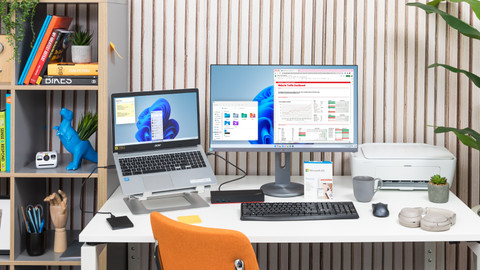
Docks for all laptops and 1 monitor
You can connect 1 monitor to a Windows laptop, MacBook, Chromebook, or Surface laptop with these docking stationsDocks for Windows laptops and 2 monitors
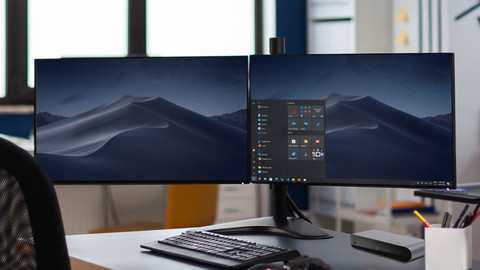
Expand your Windows laptop with 2 monitors, a mouse, keyboard, and other peripherals with these docking stations.Docks for MacBook models and 2 monitors
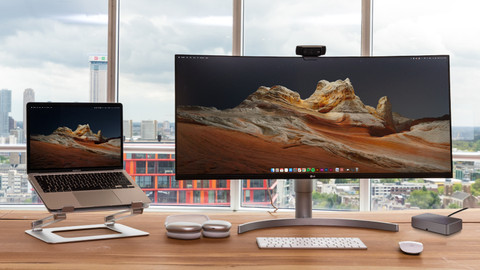
Expand your Apple MacBook Pro or Apple MacBook Air with 2 monitors and other accessories with these docking stations.
Which BlueBuilt docking station suits you?
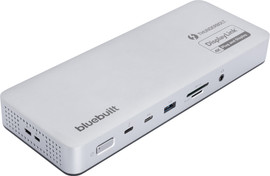
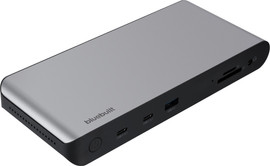
- BlueBuilt Thunderbolt 4 DisplayLink
USB-C (Thunderbolt 4)
96W power
4 monitors
DisplayLink
3x DisplayPort, 2x HDMI
From
229,-
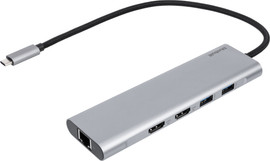
- BlueBuilt DisplayLink
USB-C
100W power
2 monitors
DisplayLink
2x HDMI
From
136,-
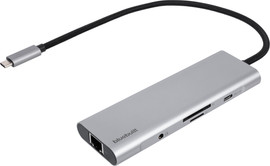
- BlueBuilt 9-in-1
USB-C
100W power
2 monitors
No DisplayLink
2x HDMI
From
102,-
- BlueBuilt 8-in-1
USB-C
100W power
1 monitor
No DisplayLink
2x HDMI
From
72,-






Is my laptop suitable for a dock?
Not every laptop is suitable to connect to a docking station. It can especially go wrong with the USB-C port on your laptop. This is how you check whether the USB-C port transmits a video signal:
- Is there a lightning bolt icon or 'D' next to the port? The port is suitable. Note: MacBook models don't have this icon, but the USB-C port always transmits a video signal.
- Do you get an image when you connect a monitor directly to the USB-C Port? The port is suitable.

DisplayLink docking stations
Connect DisplayLink docking stations to any laptop with a USB port. This allows you to quickly and easily create a complete workplace.
Thunderbolt docking stations
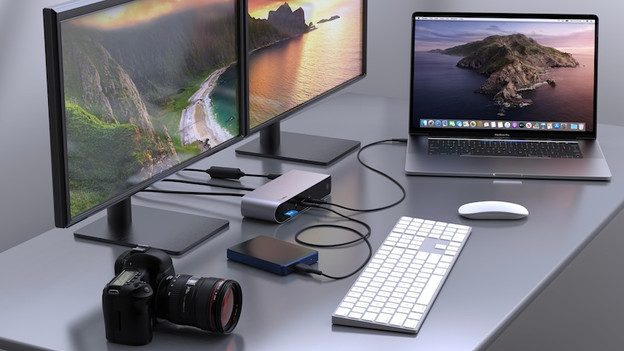
With a Thunderbolt docking station, you can transmit the highest quality image, transfer data fast, and charge your laptop while working.
Frequently asked questions about docking stations
How do I choose the right docking station for my laptop?
It's important that you choose a docking station that suits the operating system of your laptop. That way, you're sure that it works with your Windows laptop or MacBook. Also consider the main connector that you connect the dock to.
What do I use a docking station for?
With a docking station, you can connect one or multiple monitors and all of your accessories to your Windows laptop or MacBook. This way, you connect all of your workplace equipment and create a workstation.
What should I do if my docking station doesn't transfer an image signal to my monitor?
Check whether the docking station is connected to the connector of your laptop that transmits a video signal. You can recognize this from a lightning bolt or the 'D' for DisplayPort Alt Mode.
How do you connect a docking station to your laptop?
You can connect your laptop to the docking station, usually via the USB-C cable of your dock. Then connect your peripherals and you're set.
How do you connect a monitor to a docking station?
Does your docking station have a separate power cable? Connect this first and then connect your monitor via the HDMI, DisplayPort, or USB-C cable. Connect the power cord of the monitor as well. Lastly, you connect the docking station to your laptop.