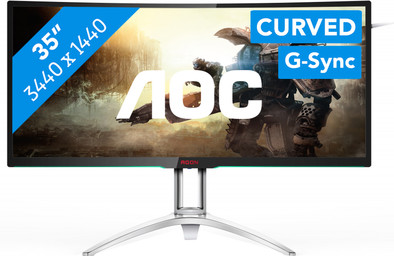
AOC AGON AG352UCG
Never available again
View alternatives in the sidebar
View alternatives in the sidebar
According to our monitor expert
The AOC AGON AG352UCG is an ultrawide curved monitor for the discerning gamer. Thanks to the extra-wide screen, you see more of your game. This means you can detect your enemies faster and dominate online. Since the screen is slightly curved, it feels like you're in the midst of your favorite game. Enjoy smooth gameplay, thanks to G-Sync technology. This enables your monitor to communicate better with your NVIDIA video card, and makes tearing and stuttering a thing of the past. The 100Hz refresh rate allows you to use this monitor for games with a high fps, like Overwatch. Tilt and pivot the monitor, or adjust the height of the AGON AG352UCG, aligning it with your posture. This reduces neck and back strain.
Curved | ||
|---|---|---|
Refresh rate | 100 Hz | |
Response time | 4 ms | |
Panel type | MVA panel | |
Color depth | 17 million colors (8-bit) | |
Built-in speakers | ||
Adjustable in height | ||
HDMI cable included |
5 stars
12
4 stars
3
3 stars
1
2 stars
0
1 star
0
Bought a second chance for 607 euros due to 2 dead pixels. I couldn't pass up the 300 euro discount for such a nice monitor. The dead pixels are almost not noticeable when I sit at a normal distance, sometimes on a black background they are visible (they are white) but generally not bothersome even though there is 1 in the middle.
** VA Panel ** The deeper contrast shows me that contrast is more important to me than 100% correct colors (this is a personal opinion of course). The colors are certainly not wrong, I took settings from someone else on the internet that makes them even better (R: 62, Green: 63, Blue: 66 with color temp "user".
** Pixel response / ghosting ** When browsing the web (especially dark websites) I see a small dark "trail" with certain movements, this only happens with certain color combinations. Especially from dark to light in my opinion. This is with an overdrive setting of "Medium". I don't see it during gaming, but while browsing the web it sometimes stands out with my mouse, for example. There are videos on youtube if you search for this monitor and "pixel response". I also see ghosting on my cell phone, so in general I wouldn't worry about it. Most people don't notice it, and even if you notice it when you pay attention, you don't notice it while gaming / working. To be sure you can look up the video on Youtube.
** 35" Ultra Wide 1440p ** This monitor has a resolution of 3440 x 1440p. You can see it as a normal 1440p 27" screen (so already a lot more space on the screen compared to Full HD for documents and sharper image for gaming (if your video card can handle it!)). And next to such a normal 27" 1440p screen , you have even more space on the left and right. This is ideal if you want 1 screen but still have the productivity of 2, it is very easy to put 2 windows side by side for example. And in gaming it also makes a good impression with extra immersion. I think it's a nice monitor for the combination of development & gaming.
Gaming Ultrawide is great for gaming, but only if your game supports it. Before you buy it, make sure the games you want to play on it support 21:9 / ultrawide. There will be plenty of games that prevent you from having to play it in 16:9 instead of 21:9, so you get black bars on the left and right. I personally don't mind this for a few games: the 16:9 format is still equal to a normal 27" screen, which is also a fairly large size and once you're in the game, those black bars are no longer super annoying .
For many games there are mods that still ensure that ultrawide works. The program "Flawless widescreen" already provides support for a number of games, but if it is not listed, some google will help you further whether there is something or not. When using this kind of mods you sometimes still have a chance that hud elements are not in a perfect position for ultrawide, you also have a chance that, for example, cutscenes are still at 16:9.
Installing a mod is usually pretty easy, but if you don't want to do this, you might want to buy a 16:9 monitor anyway, so make sure the games you want to play have build in 21:9 support. Unfortunately, this is not yet self-evident with the latest games.
It is also advisable to check which video card you have, does it draw 3440x1440? The answer to that will also depend on the games you play. I myself play on a GTX 1080ti which is currently one of the best video cards available, but a GTX1070 is often sufficient. If you have an AMD video card, this monitor is definitely not recommended, unfortunately you do pay the top price for GSync. For AMD cards (or if GSync isn't your thing), you can look at monitors with even better image quality, such as the SAMSUNG LC34F791WQUXEN. It also has freesync which is the AMD variant of gsync. Both monitors will work on both video card variants, but gsync will only work on nvidia and freesync on amd.
** GSync & 100hz ** This monitor refreshes 100 times per second (100hz). This is more than 60hz what you see on most monitors. This can be very pleasant during gaming. In Windows you can select 100hz for your monitor in the settings of your display. It is also possible to go 50hz, 60hz and 85hz, personally I see no reason to lower it and I set it to 100hz.
Where normal screens always refresh at fixed times (so in this case always 100 times per second), this monitor has support for GSync. GSync causes your monitor refresh to coincide with when your game has rendered a frame. This gives you a much faster response (no input lag) and you always see "whole frames" on your screen, which feels very nice. I also notice that frame dips from, for example, 60 to 40 are a lot less noticeable. GSync only counts between 30 and 100FPS. Below or above you get either screen tearing or input lag. Many games offer a frame limiter with which you can ensure that it does not exceed 100FPS, set it slightly below 100 (for example 98). If necessary, you can also download a frame limiter if you don't want to go above 100.
I myself play a lot of games that are locked at 60FPS, for these games gsync also works well.
GSync can be turned on in the nvidia control panel. Please note, because in addition to the menu "Set up GSYNC" you also have to turn it on at "Manage 3D settings". There you can set it per game or for everything in the global settings. I turned it on in the global settings and had no problems with it. If there is a game that gives problems, I can turn it off for that specific game in "Program settings".
**Waiting for next monitors or buy now? ** Always a difficult question, but especially buy 1 when you need one. The next interesting monitors of this size will not come until 2018. The next version of this monitor was recently announced and will come in August 2018 (although there is always a chance of delay!). The great thing about the new monitor is a refresh rate of 200hz, HDR support (great for movies and some games, but can also be dazzling) and quantum-dot technology. The Samsung I talked about earlier also has the latter, and ensures better image quality.
My boyfriend also wants one, and I think it's worth the full 900 euros for this monitor. So I'd love to see them back in stock as we're considering buying a 2nd one later this year!
Leonie
24 August 2017
Automatically translated from Dutch
Edit: When assembling the screen, I had some problems. 2 of the 4 screws to attach the arm to the screen simply do not fit. They only get half way. Solved this with a number of metal rings so that everything is still firmly attached. I expected better for a monitor of €899.
To colour: I come from a setup with main monitor 27" 1440p IPS 60Hz. The first thing that struck me was that the colors were a bit washed out. After calibration with the supplied icm file and some adjustments in the OSD, I was very satisfied with the color quality .
Refresh - 100Hz The second thing that struck me was how fluidly everything is shown. Even when simply dragging a window, you notice the higher refresh rate versus a 60Hz screen.
G-SYNC G-SYNC is on by default for fullscreen, I manually turned it on for windowed applications. You hardly notice framerate drops to 30FPS. The additional cost for this technology is well worth it! I do have to limit the frame rate for some games to just under 100 fps (eg 90 fps), because at 100 you still get tearing because the game just goes above 100.
Ghosting: I do notice some ghosting. Higher overdrive settings actually make this quite bad. It is therefore best to leave this setting on light/medium.
Backlight Bleed: I see three smaller spots, not disturbing at all.
Pixel defects: Not a single defect seen.
Xavier Maertens
12 October 2017
Automatically translated from Dutch
It might hurt for a while in the wallet, but then you have a 3440x1440 100Hz Gsync Screen. The VA panel is certainly not a big step backwards compared to IPS. For a comparable IPS model you already pay 3 to 400 euros more.
This screen offers super color quality and black/white value for both film/series and games. The curved shape takes some getting used to, but it really ensures that you are more involved in your film or game.
The Gsync function in particular is a real godsend for me, because a very large resolution is quite heavy for my video card (GTX 980 4GB). With Gsync, my games continue to run smoothly even with a heavy FPS drop. It is certainly also a tip to others not to use a too simple video card in combination with this screen to avoid disappointment in games.
What also needs to be said is that the screen was first delivered with 2 illuminated pixels, but AOC only wanted to help me with 5 pixels. AOC therefore uses a broad requirement in their pixel warranty policy.
Fortunately, Coolblue solved this neatly, as I am used to from them, by supplying a new screen with an exchange that was completely perfect!
Gerben Snijder
19 May 2017
Automatically translated from Dutch
Product number | 773259 | |
|---|---|---|
Manufacturer code | AG352UCG | |
Brand | AOC | |
Warranty | 2 years | |
Processing of your defect | Carry-in warranty |
Refresh rate | 100 Hz | |
|---|---|---|
Response time | 4 ms | |
Panel type | MVA panel | |
Local dimming | ||
HDR support | ||
Contrast ratio | 2000 | |
Touchscreen | ||
Screen reflection | Anti-glare | |
Blue light filter | ||
Color depth | 17 million colors (8-bit) | |
G-sync | ||
Adaptive Sync | ||
Resolution width | 3440 pixels | |
Resolution height | 1440 pixels | |
Anti-reflection type | Anti glare | |
Horizontal viewing angle | 178 ° | |
Vertical viewing angle | 178 ° |
Height | 58,7 cm | |
|---|---|---|
Width | 84,7 cm | |
Depth | 26,6 cm | |
Weight | 11,8 kg | |
Color | Black, Silver | |
Including stand | ||
Material | Metal, Plastic | |
Cable management | ||
Curved |
Number of USB ports | 2 |
|---|
Adjustable in height | ||
|---|---|---|
Tiltable | ||
Pivotable stand | ||
Pivot function | ||
VESA mount option | ||
VESA mount | 100x100mm |
Energy consumption standby | 0,5 W | |
|---|---|---|
Energy consumption active | 70 W |
Built-in speakers | ||
|---|---|---|
Sound system | Stereo | |
Split screen | ||
Kensington lock | ||
Best tested |