Welcome to your environment! You can order everything from your assortment with your personal budget here.

You can always return to the normal Coolblue website by clicking here.

Your outstanding budget (incl. VAT) is always visible here, so you know exactly how much you can spend.

Coolblue home

Help with your product
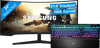
Samsung Odyssey G5 LC34G55TWWPXEN + SteelSeries Apex Pro Gaming Keyboard AZERTY
0 reviews

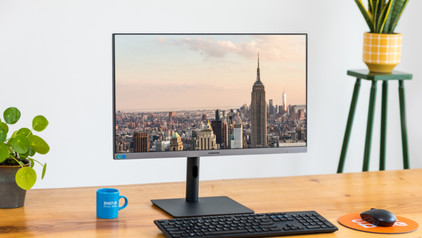
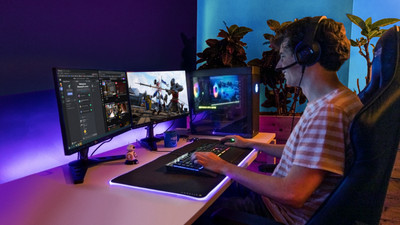
Play the best games and get ahead of your opponents with the Samsung Odyssey G5 LC34G55TWWPXEN + SteelSeries Apex Pro Gaming Keyboard AZERTY bundle. Thanks to the 165Hz refresh rate of the Odyssey G5 34-inch monitor and the low registration time of the wired Apex Pro gaming keyboard, you can move through your favorite shooter or racing game super fast. The gaming monitor also has a 1ms response time. That means you're not bothered by screen tearing or ghosting. You can also enjoy razor-sharp images thanks to the QHD resolution of the gaming monitor. Because of the HDR10 support of the Odyssey G5, you can enjoy realistic colors while you game. You can game comfortably thanks to the curved screen and the magnetic wrist rest of the keyboard.

Read all tips here

Which product do you want to see articles about?

How do you connect a PlayStation 5 to your gaming monitor?

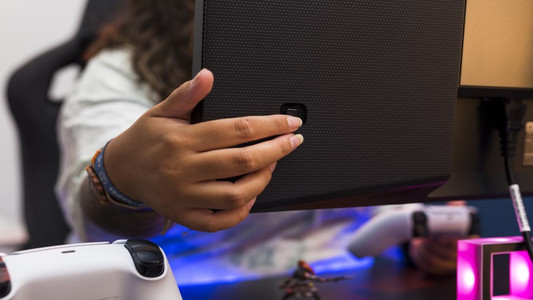
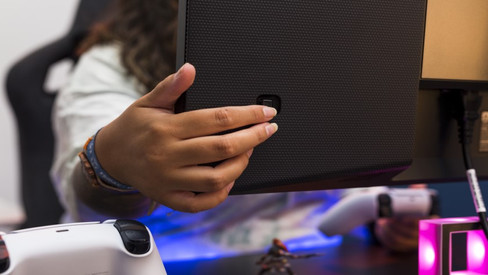
You chose a gaming monitor for your PlayStation 5, but how do you connect it? And how do you set up the right resolution and refresh rate? In this article, we'll explain how to do so step by step. This way, you can enjoy the best PlayStation 5 gaming experience via a gaming monitor.

What's overdrive on your monitor and how do you use it?

With the monitor overdrive software, you can improve the image quality and response time of your gaming monitor. In addition, you prevent ghosting when you play games. But you do you set up this software for your monitor? For example Acer Monitor Overdrive or AOC Monitor Overdrive? In this article, we'll explain what overdrive is and how to turn it on or off.

What's overdrive on your monitor and how do you use it?

With the monitor overdrive software, you can improve the image quality and response time of your gaming monitor. In addition, you prevent ghosting when you play games. But you do you set up this software for your monitor? For example Acer Monitor Overdrive or AOC Monitor Overdrive? In this article, we'll explain what overdrive is and how to turn it on or off.

How do you solve ghosting?

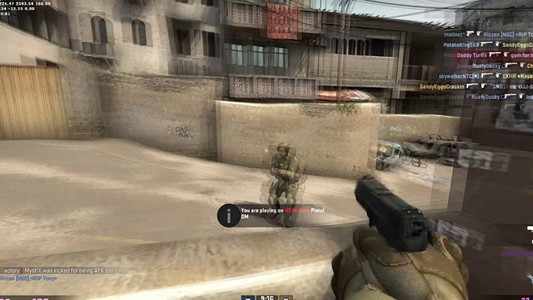
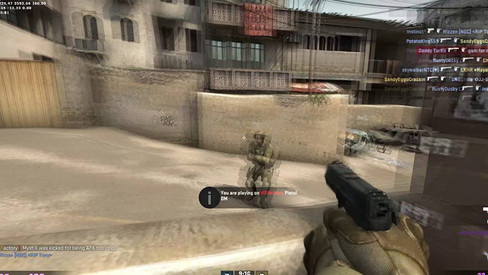
Ghosting is an effect that occurs with monitors with a low response time. Because pixels change color too slowly, it seem as if a ghost follows your movements. This is particularly annoying while gaming, but it can also occur while you're scrolling or watching a video. In this article, we'll explain how to fix this in 4 steps.

How do I use my keyboard and mouse for the PS5?

You can connect a gaming headset to your PlayStation 5, as well as a mouse and keyboard. This is a great solution when you're more of a PC gamer with a mouse and keyboard, because aiming is more difficult with a PS5 controller. In this article, we'll explain how to connect a mouse and keyboard to your PlayStation 5.

Solve dead pixels on your monitor

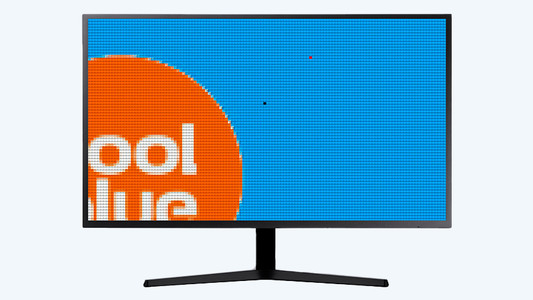
If a pixel on your monitor has a different color, you're dealing with a dead or stuck pixel. These pixel problems are quite different, in terms of both cause and solution. For example, a stuck pixel can be fixed, but a dead pixel can't. In this article, we'll explain what causes these problems, how to discover them, and what you should do.

Solve dead pixels on your monitor

If a pixel on your monitor has a different color, you're dealing with a dead or stuck pixel. These pixel problems are quite different, in terms of both cause and solution. For example, a stuck pixel can be fixed, but a dead pixel can't. In this article, we'll explain what causes these problems, how to discover them, and what you should do.

How do I connect a monitor to a tablet?

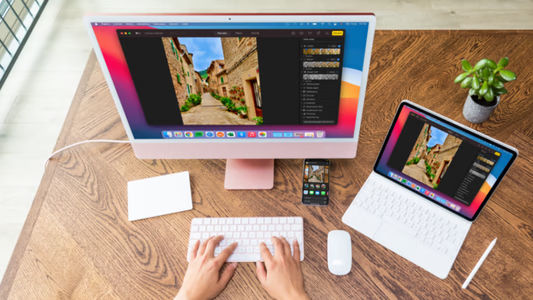
A tablet is a good replacement for your laptop or desktop. But what if you want to work with your tablet on a slightly larger screen? In this article, I'll explain how to connect your iPad or Android tablet to an external monitor.

How do you solve screen tearing and stuttering?

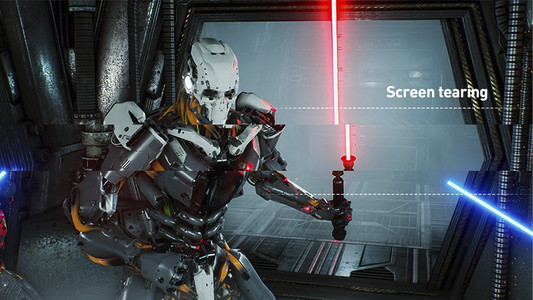
If you want to prevent screen tearing and stuttering, it's important that your video card and monitor are synchronized. There are 3 technologies that match the fps of your graphics card to the refresh rate of your gaming monitor. These are G-Sync, FreeSync, and VSync. We'll explain how to set this up on your computer.

How do I clean my keyboard?

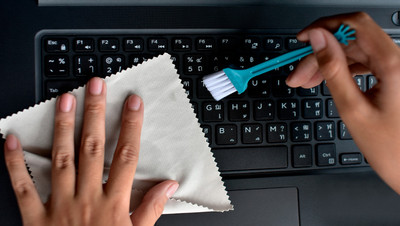
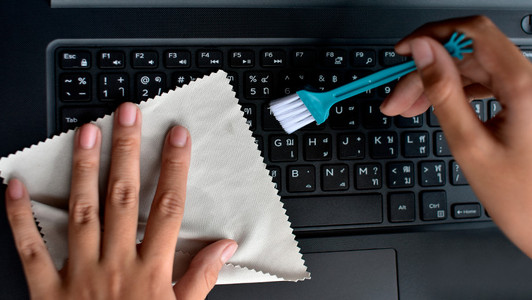
Cleaning your keyboard isn't one of the most fun chores, but if your fingers stick to your keyboard, you'll have to face the music. In this article, I'll explain how to clean a separate keyboard, and you'll read how to clean the keyboard of your laptop.

How do I use my keyboard and mouse for the PS5?

You can connect a gaming headset to your PlayStation 5, as well as a mouse and keyboard. This is a great solution when you're more of a PC gamer with a mouse and keyboard, because aiming is more difficult with a PS5 controller. In this article, we'll explain how to connect a mouse and keyboard to your PlayStation 5.

How do I clean my keyboard?

Cleaning your keyboard isn't one of the most fun chores, but if your fingers stick to your keyboard, you'll have to face the music. In this article, I'll explain how to clean a separate keyboard, and you'll read how to clean the keyboard of your laptop.

How do you connect a PlayStation 5 to your gaming monitor?

You chose a gaming monitor for your PlayStation 5, but how do you connect it? And how do you set up the right resolution and refresh rate? In this article, we'll explain how to do so step by step. This way, you can enjoy the best PlayStation 5 gaming experience via a gaming monitor.

What's overdrive on your monitor and how do you use it?

With the monitor overdrive software, you can improve the image quality and response time of your gaming monitor. In addition, you prevent ghosting when you play games. But you do you set up this software for your monitor? For example Acer Monitor Overdrive or AOC Monitor Overdrive? In this article, we'll explain what overdrive is and how to turn it on or off.

What's overdrive on your monitor and how do you use it?

With the monitor overdrive software, you can improve the image quality and response time of your gaming monitor. In addition, you prevent ghosting when you play games. But you do you set up this software for your monitor? For example Acer Monitor Overdrive or AOC Monitor Overdrive? In this article, we'll explain what overdrive is and how to turn it on or off.

How do you solve ghosting?

Ghosting is an effect that occurs with monitors with a low response time. Because pixels change color too slowly, it seem as if a ghost follows your movements. This is particularly annoying while gaming, but it can also occur while you're scrolling or watching a video. In this article, we'll explain how to fix this in 4 steps.

Solve dead pixels on your monitor

If a pixel on your monitor has a different color, you're dealing with a dead or stuck pixel. These pixel problems are quite different, in terms of both cause and solution. For example, a stuck pixel can be fixed, but a dead pixel can't. In this article, we'll explain what causes these problems, how to discover them, and what you should do.

Solve dead pixels on your monitor

If a pixel on your monitor has a different color, you're dealing with a dead or stuck pixel. These pixel problems are quite different, in terms of both cause and solution. For example, a stuck pixel can be fixed, but a dead pixel can't. In this article, we'll explain what causes these problems, how to discover them, and what you should do.

How do I connect a monitor to a tablet?

A tablet is a good replacement for your laptop or desktop. But what if you want to work with your tablet on a slightly larger screen? In this article, I'll explain how to connect your iPad or Android tablet to an external monitor.

How do you solve screen tearing and stuttering?

If you want to prevent screen tearing and stuttering, it's important that your video card and monitor are synchronized. There are 3 technologies that match the fps of your graphics card to the refresh rate of your gaming monitor. These are G-Sync, FreeSync, and VSync. We'll explain how to set this up on your computer.

How do I set up a second display?

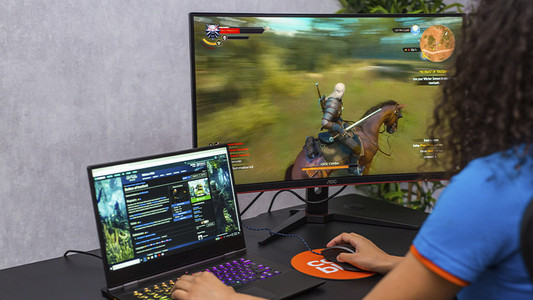
A second screen gives you extra screen space when you're working on a laptop or desktop. You can connect this in no time. Plug the connector of the monitor into a socket before you start. We'll explain how to install the screen and connect it to your computer.

How do you ensure a good sitting posture?

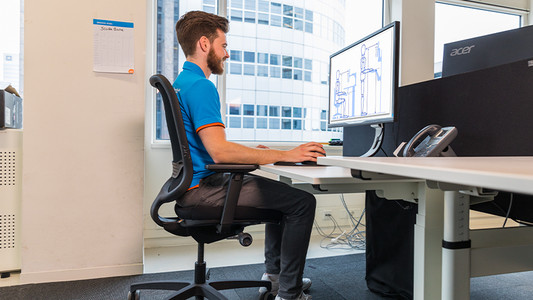
Sometimes it's hard to find the correct sitting position, especially when you work from home. We explain how to sit in the best sitting position on your desk chair, what the ideal height is for your desk, and how to setup your equipment ergonomically. That way, you can work comfortably both at home or at the office.

Subjects
Didn't find your answer?

Find an answer to your question quickly and easily via our customer service.

Coolblue specialist
Personal chat Digitalk.
You're now chatting with Coolblue customer service
This chat is closed
foo
Oeps File size is larger than 5MB. Upload a smaller file.