
Written by Job
Edited on
6 October 2025
·
10:38
How do you solve stripes and flickering on the screen of your monitor in Windows 11?
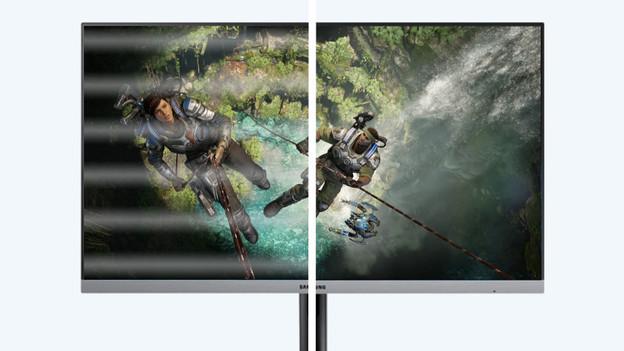
Your. monitor displays vertical stripes or continuous flickering. Luckily, there are solutions for this. Check if your driver is up-to-date, for example. Maybe the refresh rate of your monitor isn't in sync with that of your video card. In this article, you can read which causes and solutions there are.
Causes of stripes and flickering on your monitor
Before you can think about a solution, you need to know the cause. Stripes and flickering are usually caused by the same problem. That's why we'll list them for you:
- Tip 1: update your drivers
- Tip 2: prevent residual power
- Tip 3: check the cables
- Tip 4: sync the refresh rate
- Tip 5: check your video card
- Tip 6: adjust the resolution
- Tip 7: replace your monitor

Tip 1: update your drivers
Drivers allow Windows to communicate with the hardware of your computer. It's important that your drivers are up-to-date, because the image can look weird if they're not. This is how to update the drivers:
- Go to 'Device Manager'. You can find this via the search bar or press Windows + X.
- Click on 'Monitors'.
- Double-click the monitor with the issue and go to the tab 'Driver'.
- Click 'Update Driver'.
- Choose 'Search automatically for drivers' if you're looking for the latest version of your driver online or 'Browse my computer for drivers' if you're manually looking for a version of a driver. If you don't have an internet connection, you can use a USB flash drive or hard drive.
- Restart your computer to perform the update.

Tip 2: prevent residual power
Residual power is electricity in your monitor or cables that can cause errors. If your PC sends residual power to your monitor, you'll be bothered by flickering or black images. Follow these steps for a solution:
- Turn off your PC or laptop and monitor.
- Remove all cables and cords.
- Press the on/off button for about 15 to 20 seconds, so your PC or laptop gets rid of the residual power.
- Wait for 2 minutes.
- Reconnect everything and restart your PC or laptop.
Turn off the power strip every now and then when you don't use your PC or laptop. That way, your devices don't hold residual power.

Tip 3: check the cables
A loose or damaged cable is one of the most common causes of a flickering images or stripes. Check all your cables one by one. Doesn't this work? Your video cable is probably damaged. Use a different cable of the same type, or plug it into a different connector. Try a DisplayPort cable if you're using an HDMI cable. It's also possible that the quality of your HDMI cable is bad, which causes stripes on your image.
Tip 4: sync the refresh rate
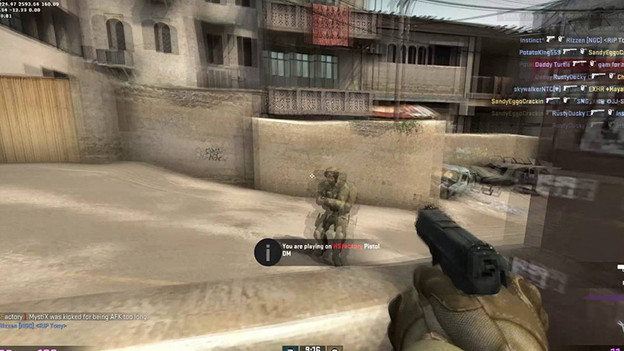
If the refresh rate of your monitor doesn't match that of your video card, it results in a flickering image. We also call this stuttering. Perform the following steps to solve it:
- Right-click on the desktop and go to 'Display settings'.
- Scroll down and click on 'Advanced display'.
- Select the monitor that has the problem and choose the maximum hertz your monitor can handle under 'Choose a refresh rate'.
In the following advice article, you can read more about the steps you have to follow.

Tip 5: check your video card
Your video card can also cause problems. There are a couple of different causes and solutions.
- The video card isn't properly connected to the motherboard. Be sure to press it firmly in place.
- The drivers of your video card aren't updated. Update them in the same way as your monitor or via the NVIDIA or AMD site.
- The PCIe slot of your motherboard doesn't work properly. Move the video card to another free slot.
- Connect the cables directly to the video card instead of the motherboard.
- Download 'Display Driver Uninstaller' for a reset of your video card driver.

Tip 6: adjust the resolution
If the resolution of your monitor is too high or low, this can cause problems. Adjust the resolution to the recommended settings. This is how you do it:
- Right-click on your desktop and click 'Display settings.'
- Scroll to 'Display resolution'.
- Choose the option with '(Recommended)' next to it.

Tip 7: replace your monitor
A defect monitor can also be the cause of flickering or stripes on your screen. If your PC is off and you still see stripes and flickering, you know your monitor is broken. In that case, you can repair the monitor or replace it. Open the display settings via the buttons on the screen. Is your monitor still flickering or do you see stripes? The problem is caused by your monitor.
