Written by Rowan
Edited on
21 July 2026
·
10:44
How do you reset your Apple Mac?
Do you notice that your Apple Mac with Apple silicon chip crashes more frequently or do you want to sell it? You need to reset it to erase all data. The reset works differently on an Apple Mac with an Intel chip. In this article, we'll explain how to safely and correctly reset your Mac in 4 steps.
Apple with Intel processors
In this article, we'll explain how to reset your Apple with Apple silicon chips. The MacBook, iMac, Mac Mini, or Mac Pro appliances from before 2020 often work with Intel processors. Does your Apple appliance work with Intel processors? We've written a special article on this.

Get started on resetting the Apple Mac
A Mac with an Apple silicon chip doesn't support a soft reset to recover the system (the SMC). With a hard reset, you restore the factory settings on your Mac model. You can do this in 4 steps:
- Step 1. Log out everywhere
- Step 2. Start macOS Recovery
- Step 3. Erase the boot drive
- Step 4. Reinstall macOS
Step 1: log out everywhere
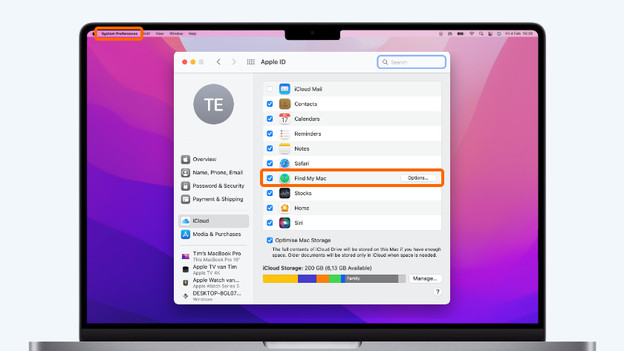
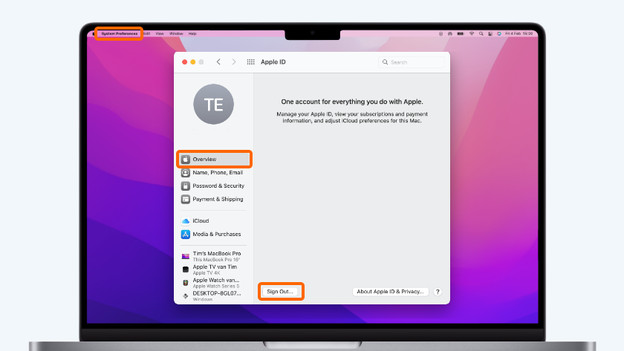
There are multiple apps that require an account. For example, iMessage and iCloud. Check all apps and log out. Especially if you're reselling or getting rid of your Mac. This works differently in each app. For iCloud, the process is as follows:
- Click the Apple logo in the top left corner of your screen.
- Select System Preferences.
- Choose Apple ID and then iCloud.
- Uncheck the box for the option Find My Mac.
- Click Overview in the side panel.
- Complete the process and select Log Out.

Step 2: boot macOS Recovery
Boot your Mac in Recovery Mode via the following steps:
- Turn off your Mac via the Apple logo and Shut Down.
- Press the on/off button and hold it down.
- Once the Apple logo appears, press and hold the on/off button again until you see Loading Startup Options.
- Select Options and Continue.
- macOS Recovery will open.
- Choose an administrator account and log in.
Step 3: erase the boot drive
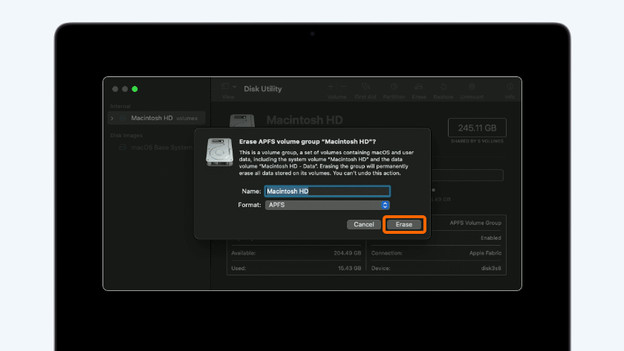
You can now erase the boot drive from your Mac. Keep in mind that this erases all of your files, accounts, and apps. Follow these steps:
- Click Disk Utility in the utility window.
- Select the drive you want to erase. The boot drive is usually listed at the top and is called 'Macintosh HD'.
- Click Erase above the menu.
- Keep the name 'Macintosh HD' and use structure APFS
- Click Erase if you don't see the option Erase Volume Group.

Step 4: reinstall macOS
After erasing the drive, you can move on to the final step. This is reinstalling macOS. Follow these 6 steps:
- Click Reinstall macOS.
- Select Continue.
- Choose a boot drive and click Install. If you get to choose between Macintosh HD or Macintosh HD - Data, choose Macintosh HD.
- When the installation is complete, you restart your Mac.
- Wait until your Mac has finished the reinstallation. This can take a couple dozen minutes.
- Do you see the start screen? Go through the steps or turn off your Mac if you're reselling it or getting rid of it.
Article by Rowan
Apple Expert.