Written by Lucas
Edited on
10 March 2023
·
09:52
How do you ensure a good connection with the Huawei Freebuds 3?
The only way to fully enjoy favorite music with the Huawei Freebuds 3 is when the earbuds have a good connection to your smartphone. If have problems with the connection, you can read how to create a good connection in 3 steps in this article.
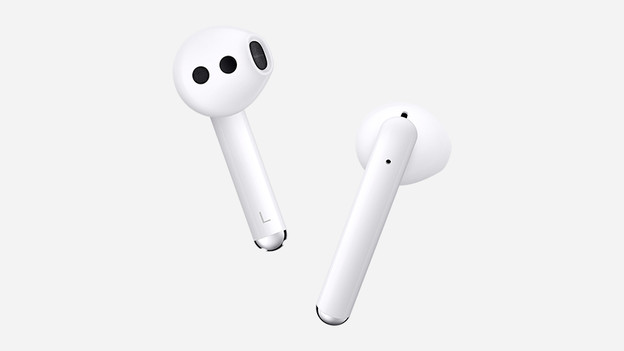
A good connection in 3 steps
To improve the connection, you turn your earbuds off and on again, download an update, and reset the earbuds.
Step 1: turn the earbuds off and on again
Step 2: download an update
Step 3: reset the earbuds
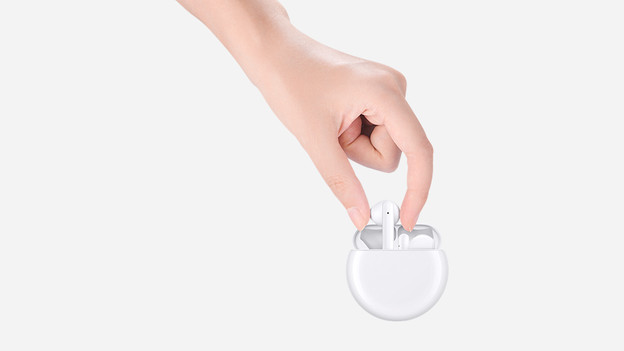
Step 1: turn the earbuds off and on again
Turn your Huawei Freebuds 3 off and on again. It's a simple act that can sometimes stabilize the connection. You turn off the earbuds by putting them in the charging case and closing the lid. Open the lid and the earbuds turn on again.

Step 2: download an update
If you have problems with the connection, it might be because your earbuds don't have the latest software update yet. An update for your earbuds often includes stability improvements. Download the Freebuds Assistant app and see if there are available updates.
Note: the Freebuds Assistant app can only be downloaded on Android smartphones.
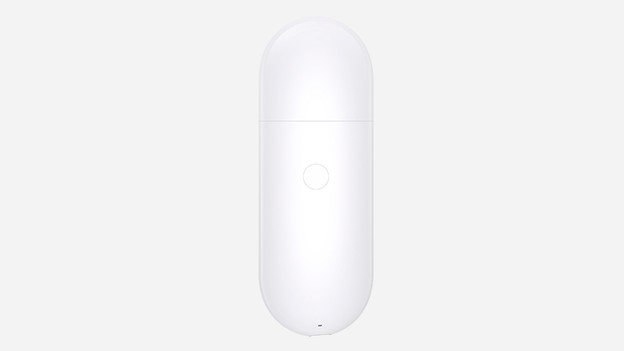
Step 3: reset the earbuds
Something else you can try for a better connection is resetting the earbuds. You do this by placing the earbuds in the charging case with the lid closed and pressing the physical button on the right side for 10 seconds. The light at the top shows a red, green, and blue light. That means your earbuds have been reset to the factory settings. You can read down below how to reconnect the earbuds to your smartphone.
Article by Lucas
Audio Expert.