Written by Evany
Edited on
14 July 2026
·
15:22
Transfer information from your old iPhone to your new iPhone
You quickly want to get started with your iPhone. You first need to transfer the data of your old iPhone to your new iPhone. You can do this quickly and easily with your old iPhone. Don't have it anymore? Use your laptop. We'll explain how transferring iPhone data works.
Get started with transferring your iPhone data
There are 3 ways to transfer data to your new iPhone.
- Via your old iPhone. This is the easiest and fastest option.
- Via an iCloud backup. Do this if you don't have your old device anymore.
- Via your MacBook. This costs more time, but can be useful if your WiFi is very slow.
Is your old device an Android smartphone instead of an iPhone? It works slightly differently.

First option: tranfer everything from your old iPhone
- Place your old and new iPhone side by side.
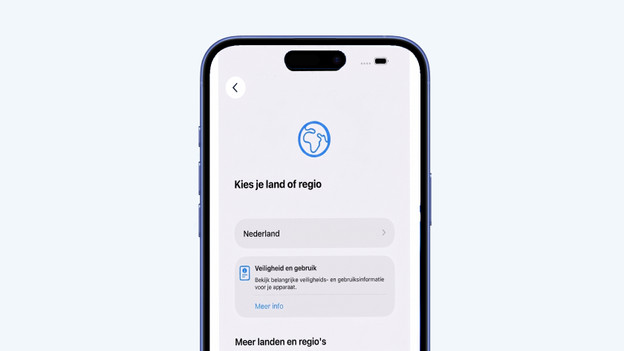
- Choose your country, language, and appearance and tap Continue.
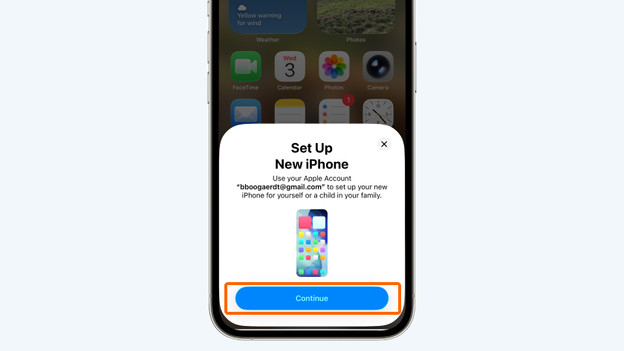
- You now receive a notification on your old iPhone. Click Continue and enter your old PIN code.
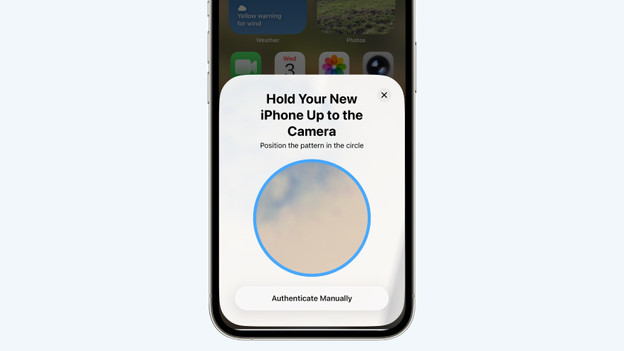
- You see an image on your new device. Point the camera of your old iPhone to that image.
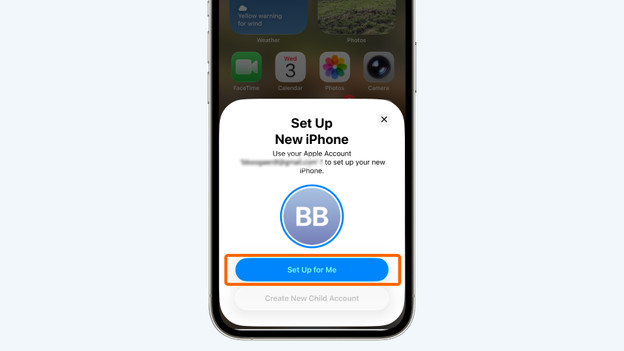
- Take your old device and click Get started.
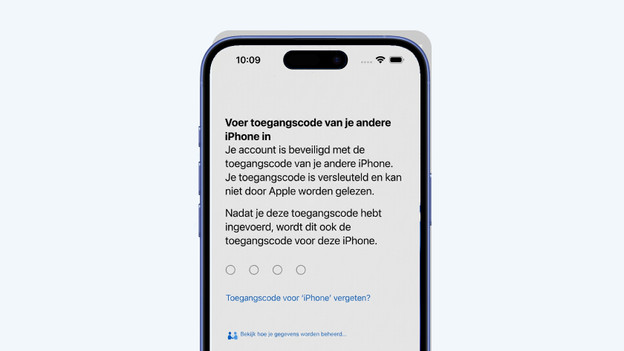
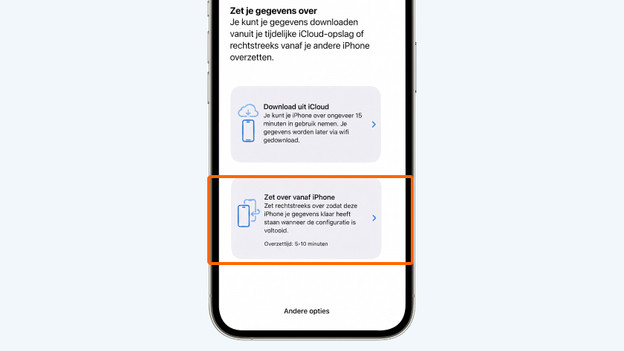
- Take your new device and confirm with your old PIN code. Your old PIN code now becomes the PIN code for your new iPhone as well. 7 Continue with the setup. When you get to the part Data Setup, choose Transfer data from iPhone.
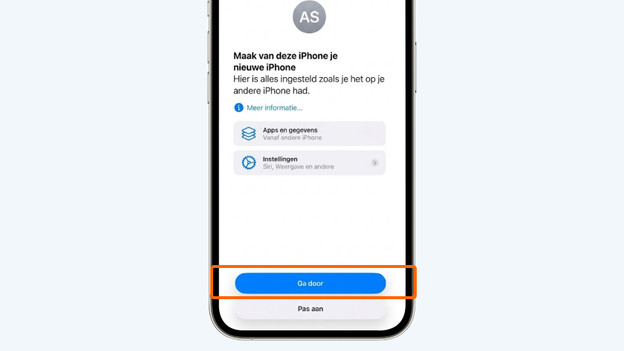
- Click Continue. Your data is now transferred in the background, while you continue setting up your iPhone.
Choose your country, language, and appearance
Click Continue
Use the camera of your old iPhone
Click Get started
Enter your old PIN code
Choose Transfer data from iPhone
Choose Continue
Second option: transfer via iCloud
Heb je jouw oude iPhone niet meer, of krijg je geen bluetooth verbinding met je oude toestel? Dan zet je via een iCloud back-up de meeste gegevens terug. Hoe nieuwer de back-up is, hoe minder gegevens je mist.
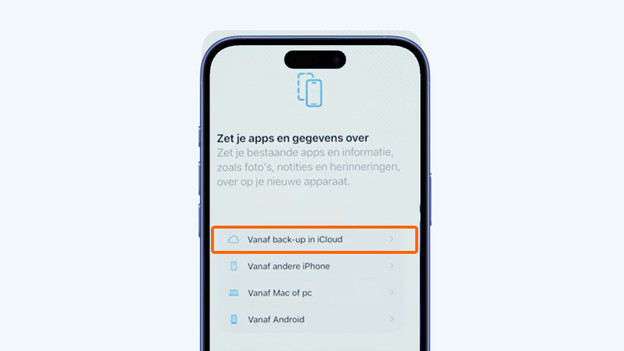
- Zet je nieuwe iPhone aan en volg de stappen tot je bij Zet je apps en gegevens over aankomt.
- Kies hier voor Vanaf back-up in iCloud.
- Kies de nieuwste back-up en log in met je Apple iD.
- Volg de stappen op het scherm en je gegevens worden nu overgezet.
Heb jouw oude iPhone nog? Maak dan eerst een nieuwe back-up, zodat je geen gegevens mist.
Third option: transfer via Finder on your Mac

Make a backup in Finder
- Connect your old iPhone to your MacBook and open Finder.
- In Finder, select your iPhone. You can find it on the left in the navigation, below 'Locations'.
- In the General tab, select "Back up all of the data on your iPhone to this Mac"
- Click Back up now
- Wait until the backup is finished and after that disconnect your iPhone.
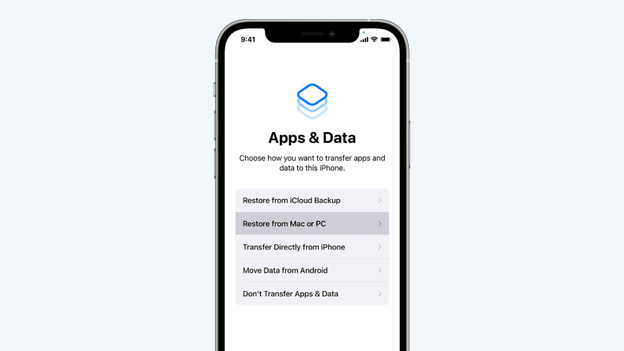
Transfer your data to your new iPhone via Mac
- Turn on your new iPhone and follow the steps until you reach Transfer Your Apps & Data.
- Choose From Mac or PC
- Connect your iPhone to your MacBook.
- Select your new iPhone in Finder.
- Select Restire Backup and click "Continue".
- Finally, wait until the backup has been transferred. Your iPhone is ready for use.
Article by Evany
Apple Expert.