
Written by Lena
Edited on
21 April 2023
·
14:42
How do you take a screenshot on your iPad?
With a screenshot, you take a photo of the screen to share your Candy Crush record with friends, for example. Or maybe you found a meme to add to your collection. It only takes a few seconds if you know how it works. That's why we'll explain how to take a screenshot of your iPad below.
Get started
It's easy to take a screenshot on your iPad. It differs per iPad model how to take a screenshot. On the iPad Pro, you can use a different button combination to take a screenshot than on iPad models with a home button.
- Tip 1: screenshot for iPad models without a Home button
- Tip 2: screenshot for iPad models with a Home button
- Tip 3: screenshot for iPad models with the Apple Pencil
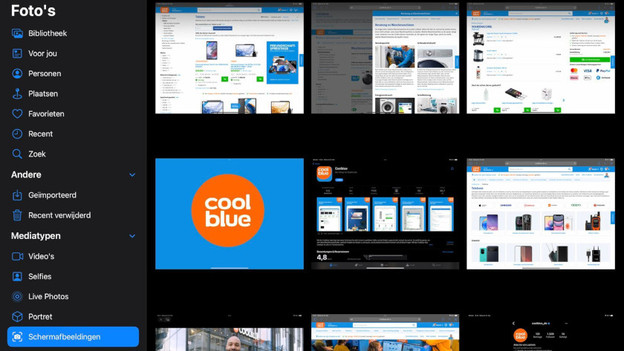
If you took a screenshot, you'll see a small image of the screenshot in the lower right corner of the screen. Tap it to view and edit it right away, or swipe left to delete it. You can view all your screenshots in the Photos app > Albums > Screenshots.
Take a screenshot without Home button
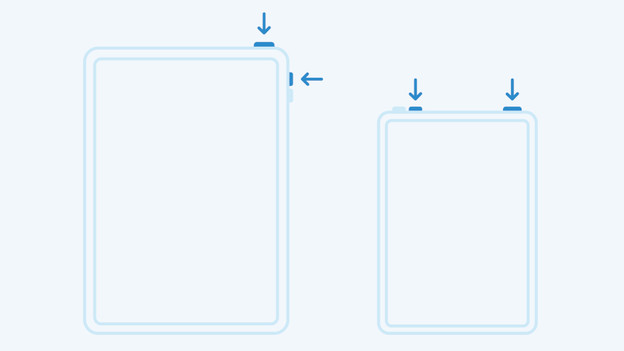
The first iPad models had a Home button, but the iPad Pro (2021), iPad Air (2022), or iPad Mini 6 don't. You can take a screenshot with iPad models without a home button by pressing the lock button and 1 of the volume buttons. Release the buttons. Your screenshot is done. You can find it in the Photos app.

Take screenshot with a Home button
Does your iPad have a Home button? You can use that to take screenshots. To take a screenshot with your iPad, press the Home button and lock button at the same time for a few seconds. When you release the buttons, you'll take a screenshot and add it to your Screenshot album.

Take screenshot with Apple Pencil
There's another way to take a screenshot with your iPad. You can do it with the Apple Pencil on your iPad. First, check if your iPad supports the Apple Pencil. It's easy to take a screenshot this way. Use the Apple Pencil to swipe from a lower corner to the middle until you see a border around the screen. When it blinks, the iPad takes a screenshot.
Article by Lena
Apple iPad Expert
