Written by Jelle
Edited on
8 October 2026
·
15:24
Get started with your iPad as a second screen for your Apple Mac
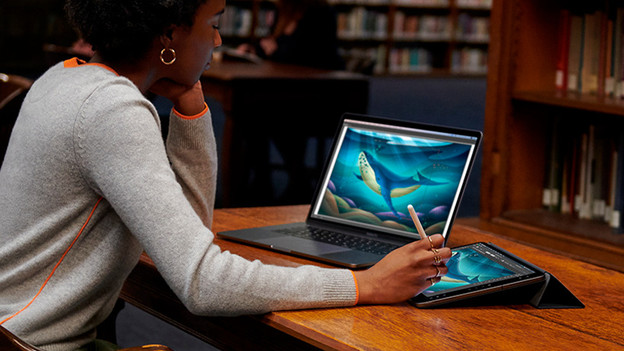
Thanks to Sidecar, you can use your iPad as a second screen for your Apple MacBook, iMac, Mac Mini, or Mac Studio. It's easy to set up and you'll work even more efficiently with all that extra screen space. In this article, we'll tell you how to set up Sidecar and use your iPad as a second screen.
What do you need to use your iPad as a second screen?
If you want to get started with Sidecar, you need to take care of a couple of things:
- A suitable Apple Mac mini or Mac Studio, MacBook, or iMac
- A suitable iPad
- Use the same WiFi network and Apple ID on both devices.
- Turn on Bluetooth and Handoff on both devices.
- Make sure both devices don't share their internet connection.
How do you set up Sidecar on a Mac?
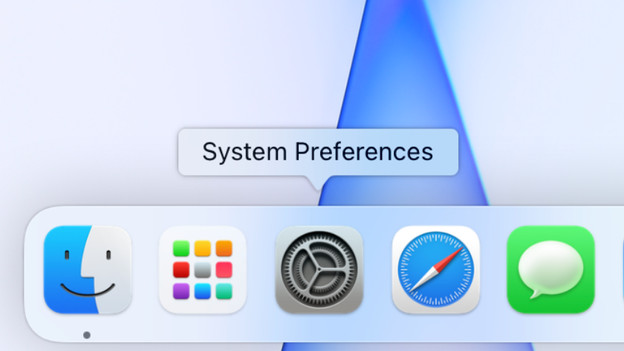
- Click System Preferences in the dock of your Apple Mac.
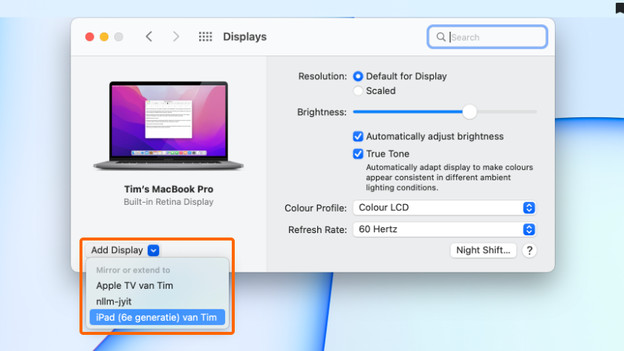
- Click Displays.
- Click on 'Add display' at the bottom left and select your iPad.
- Is your iPad not visible or do you get an error? Try restarting both your iPad and your Apple Mac.
- If you want to, you can adjust the settings in this window. You can now use your iPad as a second screen.