
Written by Mascha
Edited on
16 July 2024
·
14:20
How do you connect Apple HomeKit?
Unfortunately, not all products are suitable for controls via Apple HomeKit. But don't be upset, there's a great assortment of products that are compatible. For example, Philips Hue, Tado, Honeywell, Netatmo, and Elgato. You can recognize all compatible products by the 'works with Apple HomeKit' icon.
Explained step by step
I follow 8 easy steps to connect my devices at home to my Apple HomeKit app. Since I want to be able to control as many devices as possible via the app, I make sure I have multiple smart products at my house. I chose for multiple Philips Hue lights and a Tado thermostat.
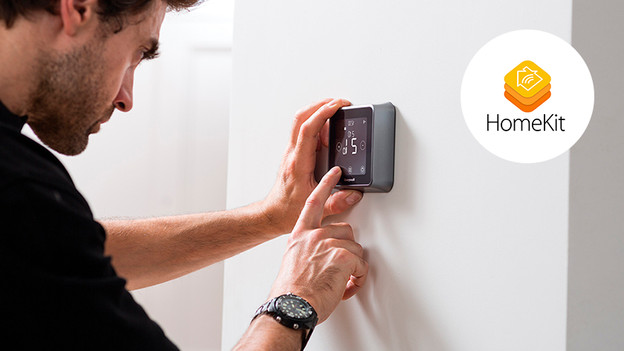
Step 1 until 3
Step 1: I download the HomeKit app on my iPhone, iPad, and Apple Watch. I have all 3, but it's possible to download the app to just 1 device too.
Step 2: I now connect all my individual lights and the thermostat to the app.
Step 3: The app asks me to choose a name per device. Useful, because I can see which device I control via the app.
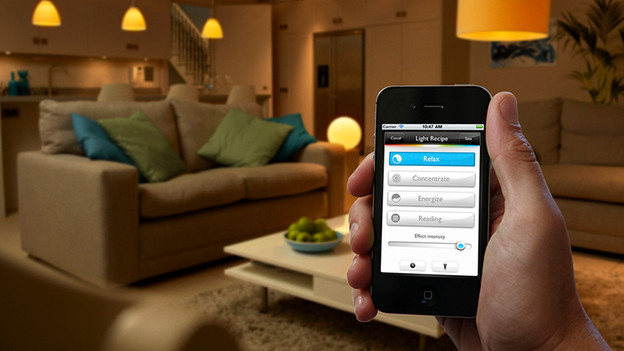
Step 4 until 6
Step 4: Now I can set the desired settings for each device. I set the light color and light intensity. Now, I want them to do exactly what I say for each room.
Step 5: First, I create various rooms. I start setting up my living room. I call this room 'living room'.
Step 6: I'm asked to take a picture of the room to personalize the app. I take a picture and add it to my 'living room' room.

Step 7
Now that I've set up the room, I connect the various devices to the room. I swipe the right lights and the thermostat to their corresponding rooms. When I click the tab of a room, this lights up in the app. When I check the actual room at home, all of my devices have suddenly turned on. Cool! When I click the tab of the room once again, this turns gray. This way, I can turn the devices in the room off again.

Step 8
The moment I come home, I want the light in the hallway to turn on and the thermostat to go to the set temperature. That's why I create a scene called 'coming home'. The moment I turn on the scene 'coming home', the devices will do what I set. This is great. I also create a scene called 'leaving' and one called 'waking up'.
Article by Mascha
Smart Home Expert.
