Written by Laszlo
Edited on
23 August 2022
·
12:52
How do you adjust the resolution of your screen in macOS?
Did you connect an external monitor to your Mac, but do you want to give the screen a different resolution? You can easily do that via the system preferences. You can read how to change the resolution of your screen in macOS in 4 steps here.
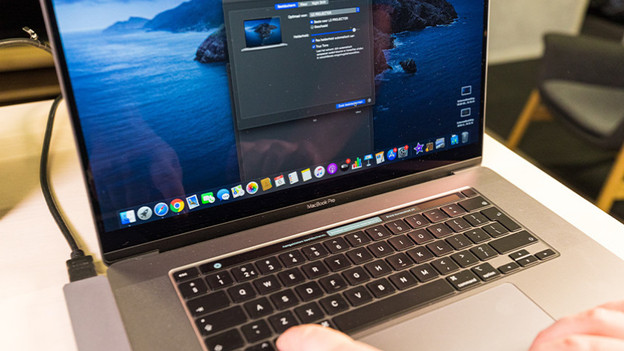
Adjust resolution in macOS
To adjust the resolution, you can follow a few steps:
Step 1: click on the Apple menu
Step 2: click on the menu Displays
Step 3: select the option Scaled, next to Resolution
Step 4: choose a resolution from the list
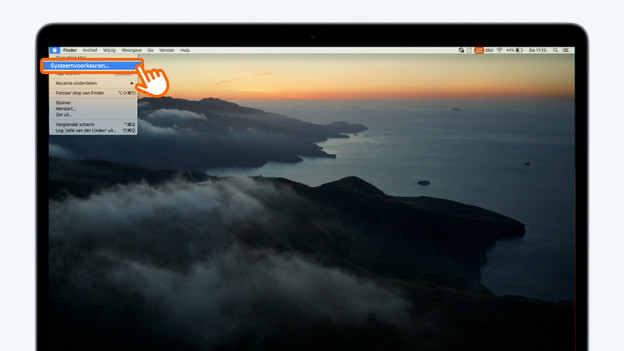
Step 1: open the Apple menu
Click on the Apple logo in the top left. You'll see a drop-down menu. Click on System Preferences.
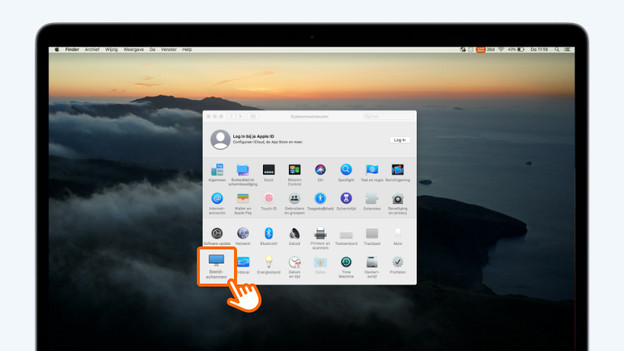
Step 2: click on Displays
In the system preferences, you can adjust important settings of your Apple MacBook. To adjust the resolution, you can click on Displays in this menu.
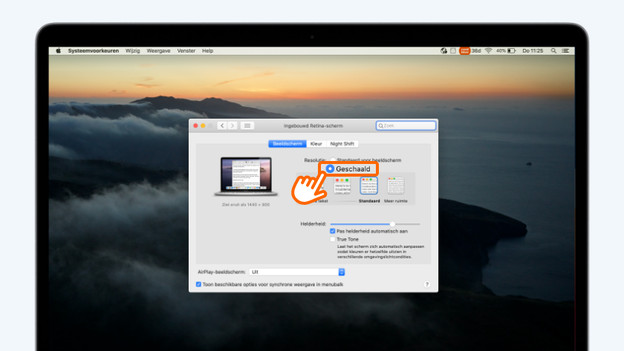
Step 3: select Scaled
The display settings are no open. The resolution is set to Standard for display by default. To adjust the resolution, choose for Scaled.
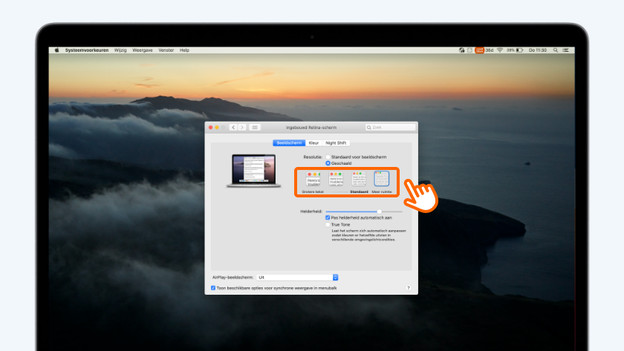
Step 4: choose a resolution
You'll now see different options. Choose a resolution that you prefer. Is the text on the screen hard to read? Choose one of the 2 resolutions which are above Larger text. Do you need more space on your screen? Choose More space.
Article by Laszlo
Apple Expert.