Written by Jelle
Edited on
19 January 2023
·
10:29
4 tips to use the Apple iPad with your Apple MacBook
One of the most important reasons to choose Apple is the eco system. The products have been designed so that they work well together. This is also true for the Apple iPad and the Apple MacBook. They complement each other well, so you can perform your tasks smoothly on them. Here, we'll give you 4 tips to use your Apple iPad with your Apple MacBook.

Get started with the Apple iPad and the Apple MacBook
We'll give you 4 tips to get even more out of your Apple iPad and Apple MacBook:
- Tip 1: use your iPad as a second screen
- Tip 2: share files via AirDrop
- Tip 3: use Handoff
- Tip 4: use Universal Control
Tip 1: use your iPad as a second screen
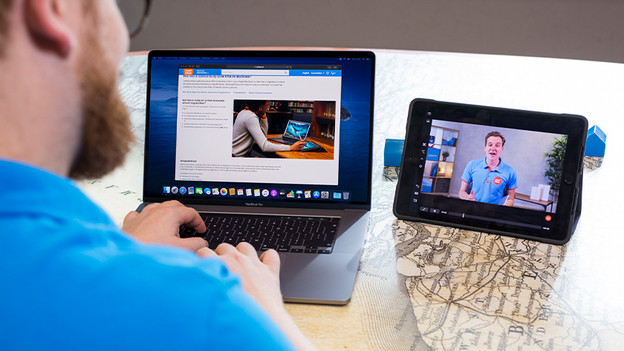
With Sidecar, you can use your iPad as a second screen. This way, you can expand your available screen space in no time. For example, you can search for information via Safari on your iPad while you write a report on your MacBook. In addition, you can also use the touchscreen of your iPad in macOS. This allows you to easily add illustrations to your Pages document or use your Apple iPad as a drawing tablet.
Tip 2: easily share files via AirDrop
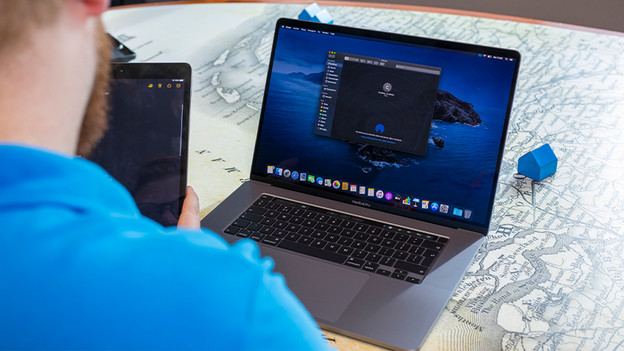
You can share files that you download on your Apple MacBook to your Apple iPad in no time thanks to AirDrop. Make sure that AirDrop is activated on both devices and that the devices are close together. Select the file, click share, and choose AirDrop. This way, you can easily move a PDF file to your iPad. Make yourself comfortable on the couch, read the document, and take notes with your fingers or Apple Pencil. Of course, it also works the other way around. You can transfer illustrations that you make on your iPad to your Apple MacBook in just a few seconds.

Tip 3: start on iPad, finish on MacBook
The Apple iPad is ideal for reading blogs, news articles, and social media messages. Did you come across something interesting that you'd like to reread on your MacBook at a later time? Copy the link to the article or text on your iPad. The universal clipboard will remember the link. When you open your MacBook, you press the touchpad with 2 fingers and select 'paste'. The copied text will now appear on your Apple MacBook.

Tip 4: use your mouse and keyboard with both devices
Thanks to the 'Universal Control' function of Apple, you can use the separate mouse or wireless keyboard of your iMac with your MacBook or iPad too. This means you can easily switch between the 2 Apple devices without reconnecting your trackpad or keyboard. To use this, go to Preferences on the iPad or iMac and Click Displays. Click Universal Control and check the options. You can now use your mouse and keyboard on the iPad too.
Article by Jelle
Apple Expert.