Written by Stefan
Edited on
9 October 2026
·
11:50
5 ways MacBook works with iPhone
All Apple devices work together seamlessly. This means that you get more out of your MacBook and your iPhone if you combine them. Control your iPhone from your MacBook or quickly copy texts from one device to the other, for example. In this article, you can read 5 ways your MacBook works together with your iPhone.
Bekijk MacBook en iPhone
- Apple MacBook Neo 256GB Citrus
Works smoothly with iPhone models running iOS 16 and later.
From
734,-
- Apple iPhone 17 256GB Black
Works smoothly with MacBook models with macOS Ventura or newer.
From
1.099,-





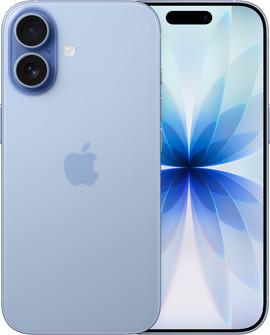
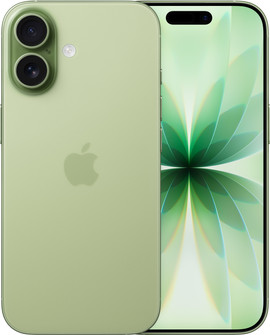



Laat jouw MacBook en iPhone samenwerken
You can get more out of your Apple devices by combining them. With these 5 tips, you'll discover how your iPhone and MacBook work together:
- Call and text on your MacBook
- Use your iPhone as a webcam
- Share files among devices
- Copy and paste among devices
- Continue working on all your devices
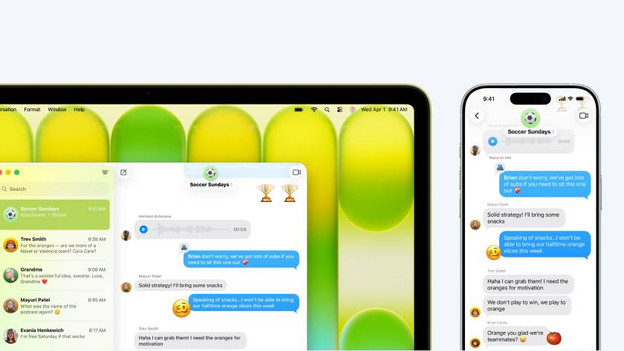
Calling and texting on your MacBook
If your iPhone and MacBook are connected to the same Apple account, you'll also receive your calls and texts on your MacBook. In addition, you can reply directly from your MacBook without needing your iPhone. This applies to both regular phone calls and FaceTime calls.
To set this up, follow these steps on your iPhone:
- Go to Settings;
- Tap Phone;
- Tap Call via other devices;
- Select MacBook

Continuity camera: use your iPhone as a webcam
Every MacBook has a webcam, but it isn't as sharp as the camera of your iPhone. With the Continuity Camera function, you can use your iPhone as a webcam on your MacBook. You'll look sharper, but can also use convenient functions like Studio Light, portrait mode, and desktop view.
To set up the Continuity camera, follow these steps:
- Connect to your iPhone;
- Open FaceTime;
- Tap the menu bar on Video;
- Choose your iPhone as the camera.
AirDrop: easily share files
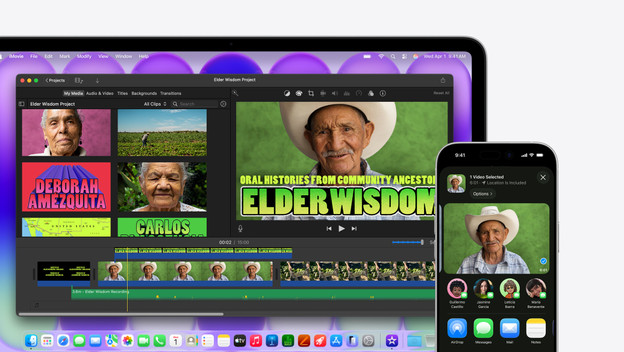
You can share all your important files between your MacBook and your iPhone with the tap of a button. Use the AirDrop Apple function for this to easily share a photo from your iPhone to your MacBook, for example. You don't need any extra cables or other apps for this. If both Bluetooth and WiFI are enabled on your iPhone and MacBook, AirDrop works automatically.
Universal clipboard: copy and paste among devices
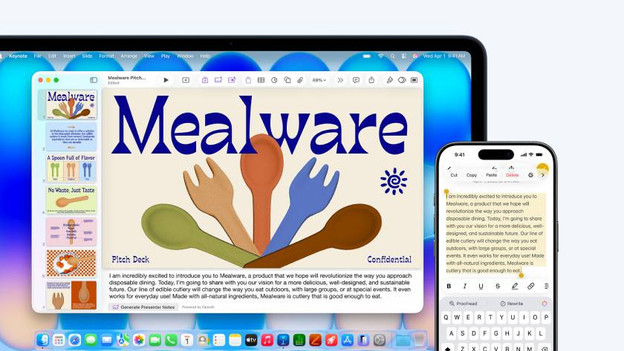
You can easily copy links, text, photos, and videos from your iPhone to your MacBook and vice versa with the universal clipboard. Simply copy a file on one device and paste it to your other device where you want it. You do have to make sure that the devices are connected to the same Apple account. In addition, both Bluetooth and WiFi have to be enabled. That way, the universal clipboard works automatically.
- Go to Settings;
- Tap Phone;
- Tap Call via other devices;
- Choose your MacBook
Handoff: continue working on your other devices
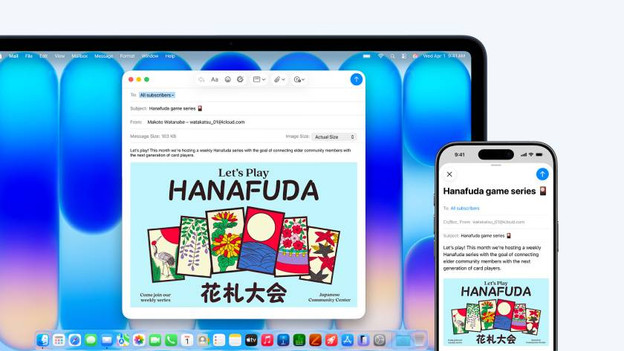
With Handoff, you can easily switch between your Apple devices to finish a task. You can start writing an email on your iPhone and finish that email on your MacBook, for example. You can also easily share websites, notes, and other apps among your devices. Your MacBook and iPhone do need to be connected to the same Apple account for this. That way, Handoff works automatically.
Article by Stefan
Apple Expert.