Written by Deanne
Edited on
8 September 2026
·
12:49
Compare macOS to Windows and ChromeOS
An operating system determines the digital look, functions, and settings of your laptop or desktop. That's why it's important that you choose a system that suits your needs. The Apple operating system is called macOS, the Microsoft operating system is Windows, and the Google system is called ChromeOS. You can read about all differences and similarities between these systems here.
Comparison macOS and Windows and ChromeOS
| macOS | Windows | ChromeOS | |
|---|---|---|---|
| Brand | Apple | Microsoft | |
| Usage | Light, medium demanding, and demanding tasks | Light, medium demanding, demanding tasks, and gaming | Light and medium demanding tasks |
| Pre-installed software | Apple iWork | Differs per laptop | Google Workspace |
| Storage | Local or iCloud | Local or OneDrive | Local or Google Drive |
| AI system | Apple Intelligence | Microsoft Copilot+ | Google Gemini |
Which operating systems are there?

macOS: Apple MacBook
Are you choosing an Apple MacBook, iMac, Mac mini, or Mac Studio? You'll be using macOS. This operating system seamlessly works with other Apple systems, like iOS and iPadOS. One of the biggest pros of macOS is the user-friendliness. Especially when you're used to Apple iPhone and Apple iPad, you'll recognize a lot of the features.
Windows: Microsoft laptops
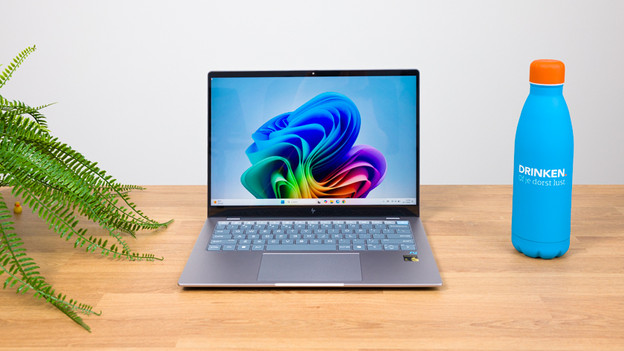
The most well-known operating system is Windows. Many laptops and computers work with this Microsoft operating system. Windows works together well with Android as well as iOS. The biggest advantage of Windows is that almost all apps and programs work well with this operating system. That makes Windows suitable for every usage situation.
ChromeOS: Chromebooks
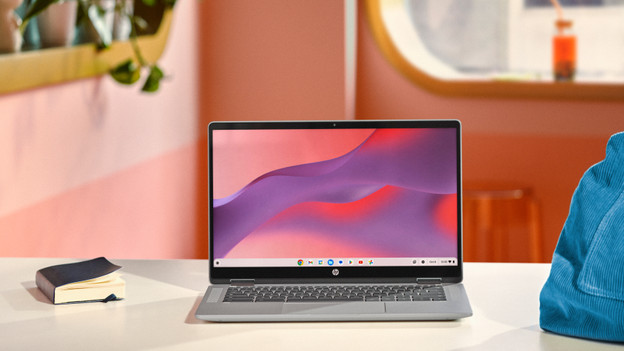
ChromeOS is the operating system of Chromebooks. With this operating system, you mostly work in apps from Google, like Gmail and Google Drive. ChromeOS works together well with Android, because Google also owns Android. ChromeOS is a light operating system, so the battery life of Chromebooks is longer than that of other laptops.
The most important differences listed
macOS
- You can seamlessly work with other Apple products.
- The pre-installed Apple iWork software is free and doesn't have a trial version.
- You can easily and securely store files in iCloud.
- Most games are unsuitable for macOS.

Windows
- You can securely work with Windows Home, Windows S Mode, and Windows Pro.
- Windows has a large offer of software and hardware.
- Windows is there for every usage situation.
- You can't use Apple apps on Windows.
ChromeOS
- Thanks to the light operating system, the battery lasts a long time.
- You're well-protected from viruses.
- You mostly store files in Google Drive, so you can work from anywhere.
- You can only install apps from the Google Play Store.
Usage situation
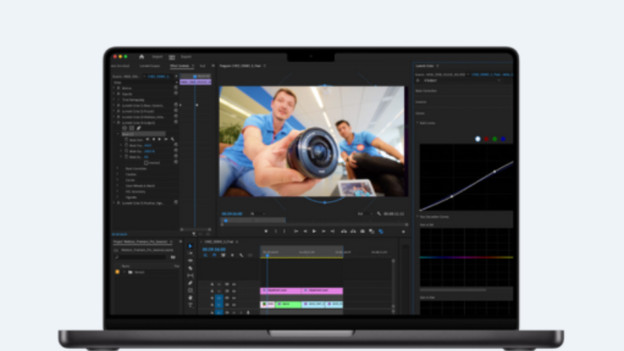
macOS: even the most demanding tasks
No program is too demanding for macOS. This operating system is user-friendly for everyone and suitable for every task. You can easily use macOS for light and medium demanding tasks as well as use it to perform graphically demanding tasks. For example, 4K video editing or 3D design. MacBook is mostly popular for creative tasks.
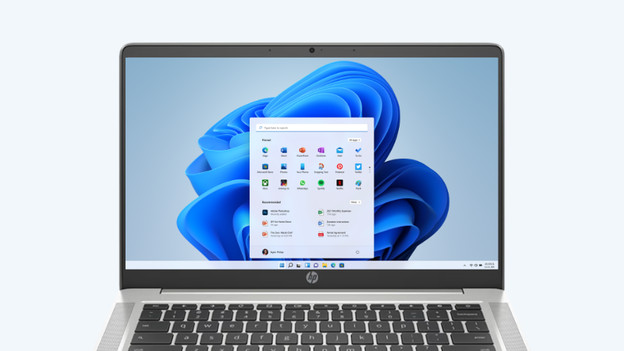
Windows: for every usage situation
Windows is suitable for every usage situation, because you can install all apps, programs, and other software. You can use Windows for everyday tasks as well as graphically demanding tasks and gaming. For example, writing texts and reports, playing your favorite games, or editing large photo and video files and 3D designs.

ChromeOS: for everyday tasks
Getting started with light to medium demanding tasks? ChromeOS is for you. ChromeOS is suitable for tasks like watching movies and writing texts, as well as for light graphic design tasks. Write reports for school, watch movies, and edit photos every once in a while. You can also easily use a Chromebook on the go, as the battery lasts a long time.
Programs and apps

macOS: Apple iWork
The pre-installed Apple software is free and doesn't have a trial version, so you can get started right away. Write texts in Pages, make presentation in Keynote, and keep track of your accounting in Numbers. In addition, macOS has an extensive App Store with various apps from multiple categories. You can also find non-official Apple apps here. For some apps, you do have to pay.

Windows: install every program
The biggest advantage of Windows is that you can install almost every program. Download apps from the Microsoft Store or install programs from the internet. In Windows S mode, you can't install programs from the internet. You can then only download apps from the Microsoft Store. Microsoft Office programs often aren't included with a Windows laptop by default. You have to buy that separately.
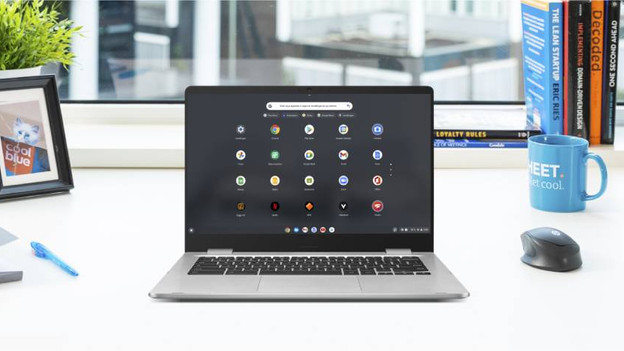
ChromeOS: Google Workspace and apps
With ChromeOS, you can only install apps via the Google Pay Store and not from the internet. Luckily, there are many apps available in the Google Play Store. There are standard Google apps installed on your Chromebook. For example, Google Chrome, Gmail, and Google Drive. You can also easily use the web app of many programs. You can also use Office programs on a Chromebook.
Privacy and security
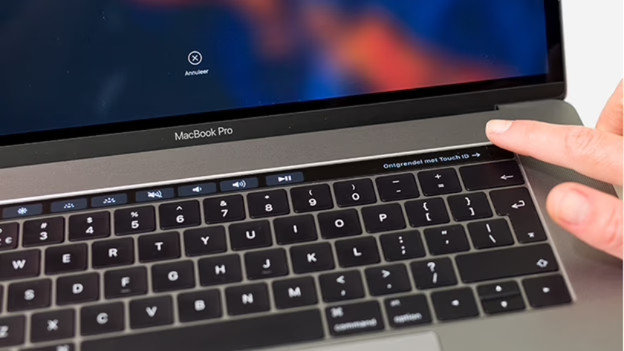
macOS: even Apple can't get to it
The Apple software is known for its good protection from digital threats like viruses and phishing. All your data and files are automatically encrypted. FileVault offers even more protection, because your information is only accessible with your login password. Rather use iCloud? Your information is encrypted with end-to-end encryption. Even in case of a data leak, your information is safe. Want even more protection? Get Norton Antivirus.

Windows: safe with Windows S and Pro
The Windows security depends on the version you use. With Windows S mode, you're well-protected from viruses because you can only install apps from the Microsoft Store. With Windows Pro, you can use useful security functions for all your information. Windows Home is the least secure. Luckily, Windows can recognize which apps are safe with Smart App Control. You also get 1 year of Norton Antivirus for free with Windows laptops, which you can use to protect your laptop even more.

ChromeOS: continuous security updates
ChromeOS has good privacy and security. You can only install apps from the Google Play Store, so you're well-protected from viruses. Every time you boot your Chromebook, ChromeOS runs a Verified Boot. That's self-check for viruses and other threats. When something odd is found, ChromeOS removes the threat right away. ChromeOS also performs security updates every 2 to 3 weeks. That way, you're always protected.
Ecosystem
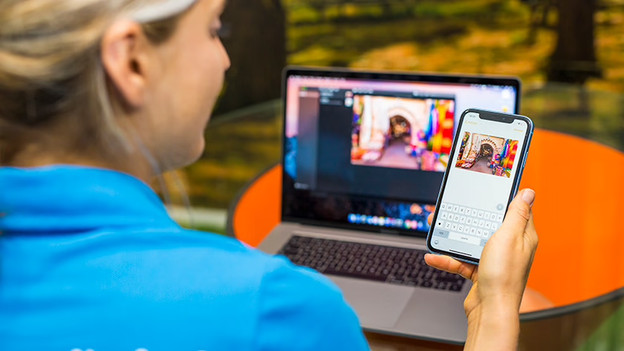
macOS: seamless Apple collaboration
Apple has its own ecosystem, so your devices work together smoothly and quickly. For example, answer a phone call via your MacBook when you're working, share files via AirDrop, or control music on your Mac via your Apple Watch. You can easily copy texts on your iPhone and paste them on your Mac. Functions like Apple Pay and Find My also work together seamlessly.
Windows: works with Apple and Google
With Windows, you have the best of both worlds. You can smoothly connect an iPhone or Android phone to Windows. With Phone Link, you can easily connect your phone to your laptop. That way, you don't have to switch between your phone and laptop as often. You can quickly respond to messages and answer phone calls via your Windows laptop. You can also share photos from your phone to Windows.
ChromeOS: seamless with Google
ChromeOS works together well with other Google devices. You can easily connect your Android phone to your Chromebook, because Google owns Android as well. Take a photo with your Google Pixel and view it on your Chromebook right away. Via Google Home, you can control your smart devices. You can log in and easily share data with all these devices via your Google account.
AI
macOS: Apple Intelligence
Apple Intelligence is the name for Apple's AI functions. Apple Intelligence can help write texts and design images, for example. Thanks to Apple Intelligence, Siri can also answer all your questions better. Apple Intelligence will be available in April 2025.

Windows: Microsoft Copilot+
Copilot+ is the AI system from Microsoft. Windows laptops with Copilot+ have useful AI programs for all your work. You can quickly find your files with Recall, for example. You can also sketch drawings and let the AI bring them to life with Cocreator.

ChromeOS: Google Gemini
Gemini is Google's AI assistant. Gemini is integrated into all Google apps, such as Gmail, Calendar, Google Docs, and Google Sheets. Gemini can help you to write emails and texts in apps like Gmail or Google Docs, for example. Gemini also answers all your questions via the chat assistant.

Do you want to use Windows programs on macOS?
Do you want to work with Apple Mac, but want to work with Microsoft Office instead of Apple iWork? That's no problem, because you can also use programs such as Microsoft Word and Excel with macOS. You do need a Microsoft Office suite for this. Read how to use this license and which version to choose in this article.
View all laptops
Apple MacBook
An Apple MacBook runs on the macOS operating system. You can view all models here.Windows laptops
A Windows laptop runs on the Windows operating system. You can view all models here.Chromebooks
An Apple MacBook Chromebook runs on the ChromeOS operating system. You can view all models here.

Article by Deanne
Laptop Expert.