Written by Tobias
Edited on
8 July 2025
·
15:06
How do you make sure your laptop boots faster in Windows?
Your laptop works, but starting up goes a lot slower than before. Luckily, Windows has a useful function to make your laptop start up again quickly. In this article, you can read how this works.

Boot windows faster in 2 steps
Installed programs affect the boot time of your laptop the most. By disabling startup programs, the laptop starts up faster. With the following 2 steps, you can see what to change to make your laptop boot faster.
- Start up Task Manager
- Exclude programs
Step 1: launch Task Manager
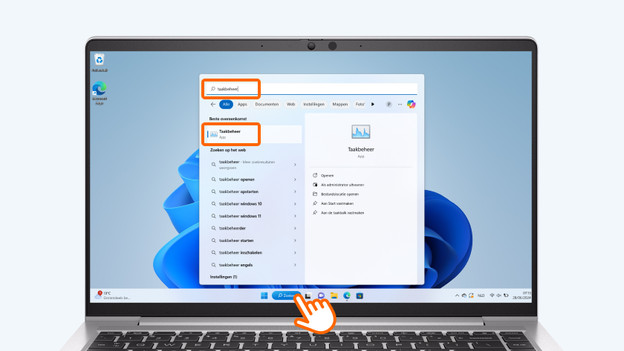
- Type 'Task Manager' in the search bar and click on Task Manager in the menu.
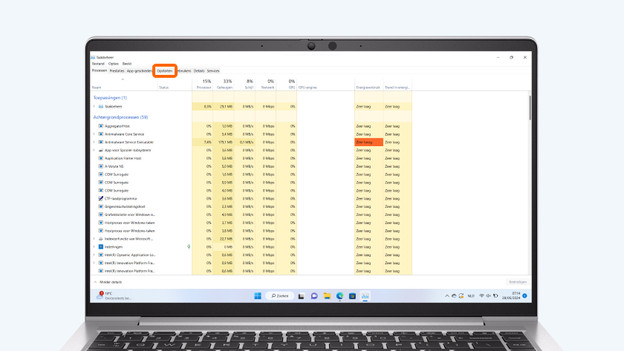
- Click on the Startup tab. You now see a list of the programs that open by default when you start up your laptop.
- Click Startup impact, so you can quickly see which programs have a lot of impact on the speed of your laptop.
Type 'Task Manager' in the search bar.
Click on the 'Startup' tab.
Step 2: disable startup programs
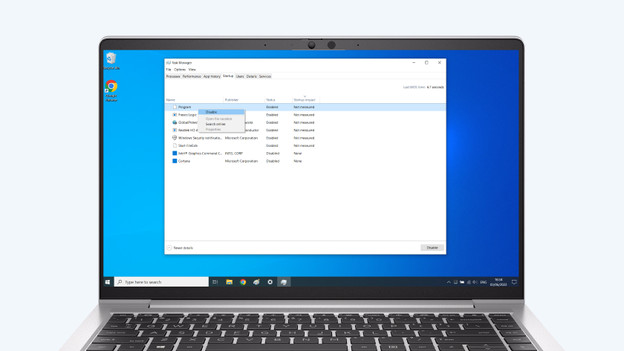
- Choose the programs you no longer want to boot with your laptop. Click on the program you want to exclude with your right mouse. Choose Disable.
- Carefully consider which programs you disable. You don't want to disable a virus scanner from opening on startup, because you always want it working in the background. Mainly disable programs you don't use as often.
- Keep disabling programs until you're happy with the boot time of your laptop of computer. The more programs you disable, the faster your PC boots.
Article by Tobias
Laptop Expert.