
Written by Rowan
Edited on
6 August 2026
·
12:17
7 tips for when the Touch Bar of your MacBook isn't responding
Doesn't the Touch Bar of your MacBook respond to touches anymore, or does the screen remain black? The Touch Bar probably froze. We'll tell you how to turn it back on.

7 tips for when the Touch Bar isn't responding
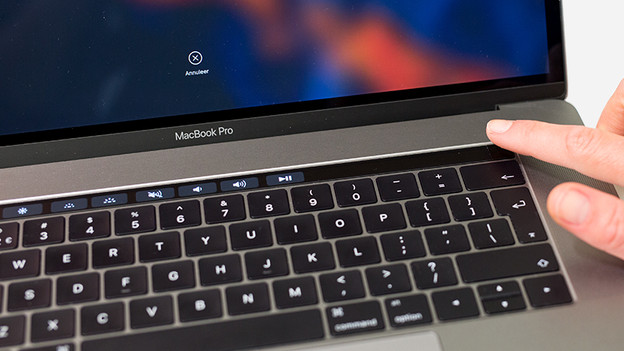
The Touch Bar is a Mini OLED screen above the keyboard of certain MacBook models. Doesn't the Touch Bar work or respond? Try one of these tips.
- Tip 1: try 'Force Quit'
- Tip 2: renew the Control Strip
- Tip 3: renew the Touch Bar
- Tip 4: check the settings
- Tip 5: check your power supply
- Tip 6: restart System Management Controller
- Tip 7: restart your MacBook

Tip 1: try 'Force Quit'
When the Touch Bar isn't working, it's often due to frozen software. Close the app in which the Touch Bar isn't working.
- Click on the Apple logo on the top left of your screen.
- Click Force Quit.
- Select the app in which the Touch Bar isn't working and click on Force Quit. Confirm you want to close the app again.
When the app causes problems with the Touch Bar again, there's probably a bug in the app. Check if there's an update available for this app.

Tip 2: renew the Control Strip
The Control Strip is located all the way to the right of the Touch Bar. It often shows a sun, the volume buttons, and the Siri button. Is this part not visible or working? Renew the Control Strip.
- Open Finder, click on Apps and open Utility programs.
- Open Activity display.
- Enter Control Strip in the search bar.
- Select Control Strip and click on the cross on the top center of your screen.
- Click Force Quit in the window that just opened.

Tip 3: renew the Touch Bar
Does the Touch Bar remain empty, is it not responding to your touches, or is it not working properly with the opened apps? Renew the Touch Bar.
- Open Finder, click on Apps, and open Utility programs.
- Open Activity display.
- Enter touchbar in the search bar.
- Select TouchBarServer and click on the cross on the top center of your screen. This process was called Touch Bar Agent until macOS Sierra (version 10.12).
- Click Force Quit in the newly opened window.
Your Touch Bar will be empty for a couple of seconds before it returns again.

Tip 4: check the settings
The Touch Bar works, but the wrong buttons are displayed. Something might be wrong with the settings.
- Click on the Apple logo at the top left of your screen.
- Click on System preferences.
- Click on Keyboard.
Check if 'App controls' is selected with 'Touch Bar displays'. Did your Control Strip disappear? Check Display Control Strip.

Tip 5: check your power supply
The Touch Bar only functions properly if there's a continuous power supply. Does your Touch Bar stop working while you're charging? Make sure to check if the connector is plugged into the socket properly, and if there aren't any cable breaks.
Tip 6: restart System Management Controller
Note: you can only perform this tip on MacBook models with an Intel chip.
System Management Controller is a part of your Intel MacBook that controls physical components like the battery, the ON button, and the keyboard. Problems with the Touch Bar are also a part of this. In our advice article, you can read how to restart System Management Controller.
Tip 7: restart your MacBook
A last tip is to restart your device, because most errors with electronic devices are solved by restarting the device.
Article by Rowan
Apple Expert.
