Written by Deanne
Edited on
1 April 2025
·
12:32
5 tips on how to use Adobe Photoshop with AI
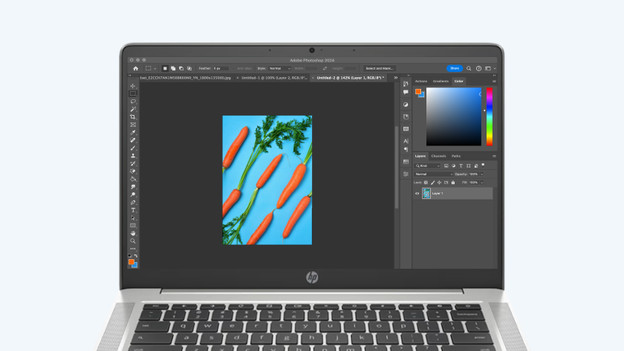
Want to edit photos in Adobe Photoshop? AI helps you to easily adjust or design your images. You can add new components to your image with Generative Fill, for example. Is there something in the background you don't like? You can easily remove it with AI. In this article, we'll give you 5 tips on how to use AI in Adobe Photoshop.
Get started with AI in Adobe Photoshop
In Adobe Photoshop you can easily edit your photos with AI. Depending on which Adobe Photoshop version you have, you can use AI. With Adobe Elements, you can't use all the functions we mention in this article. Every subscription works with generative credits. You use generative credits for AI tasks in Adobe Photoshop. The amount of credits is reset every month, so you can always work with AI. You can use AI in various ways:
- Tip 1: use Generative Fill
- Tip 2: expand your photo with Generative Expand
- Tip 3: create images with Text to Image
- Tip 4: adjust the backgrounds of your photos
- Tip 5: adjust details with AI
Tip 1: use Generative Fill
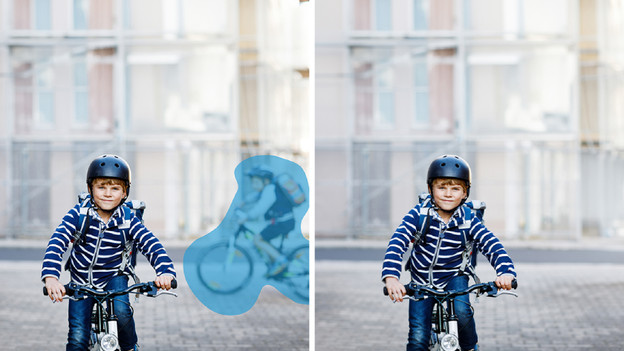
With Generative Fill, you can add things to your photos with AI. Shadows or reflections, for example. You can use a selection tool such as the Selection Brush Tool and select the area in your image where you want to use Generative Fill. In the text box that appears, you can write a description of what you want to generate or you can keep it empty and leave it to the AI. Click on Generate and view the various images AI designs for you.
Tip 2: expand your photo with Generative Expand
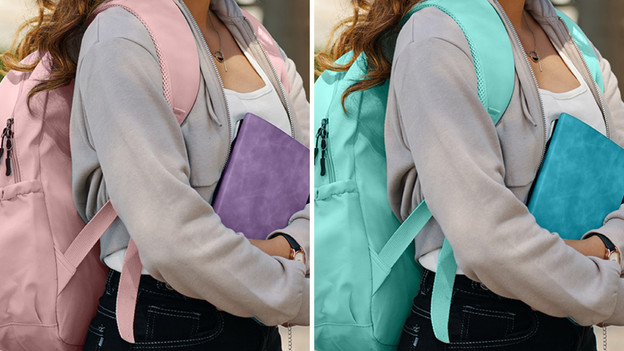
Want to enlarge or expand your photo? You can do so easily with Generative Expand. Use the Crop tool and extend it beyond the edges of your image. You can decide how large you make the image, because you can adjust the tool to the desired size. Click Generate, and AI gets to work. AI adjust the generated image to your image, so it fits the photo well.

Tip 3: create images with Text to Image
Are you looking for an entirely new image? Design whatever you want with the Text to Image tool in Adobe Express. Keep in mind that Adobe Express is a separate app that you have to purchase separately or use via your subscription. On the Adobe Express Home page, click Generative AI. Then describe what kind of image you want to design. You can use as much or little detail as you want. AI turns your design into an image. In the Generate Images panel, you can choose the style of the image AI should generate.

Tip 4: adjust backgrounds of your photos
Do you have a photo of a subject, but without a good background? You can easily change this with Generate background. Enter a description of the background you want and AI does the rest. AI replaces the existing background with a new one and adjusts the lighting, shadow, and perspective. Do you already have a good background, but are there cables or people in it? You can easily remove these distractions with the Remove tool. You can also easily blur the background, so the most important part of your image is clearly visible.
Tip 5: adjust details with AI
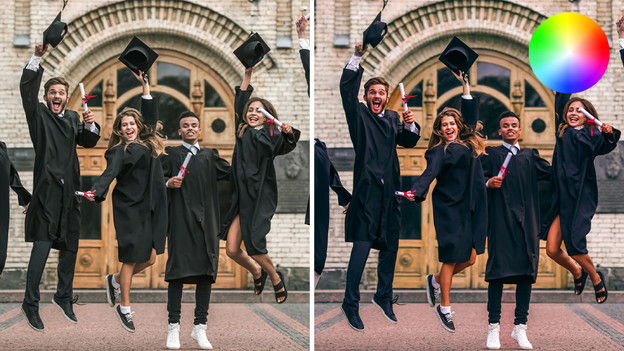
In addition to Generative Fill and Generative Expand, Photoshop has more AI tools that you can use to edit your photos:
- Neural Filters: use generative filters and improve the colors or adjust portraits with AI.
- Preserve Details 2.0: adjust the size of your photo without reducing the quality of your photo.
- Remove: remove shadows or prune a tree.
- Match Font: AI helps you find the font in images or photos. That way, AI scans the font in an image and lets you know which font it is.
View Adobe Photoshop packs



Article by Deanne
Laptop Expert.