Written by Kasper
Edited on
10 November 2022
·
16:45
Updating Windows on your PC
The most common problems with your computer often have the same solution. That's updating Windows or updating your driver. Doesn't your internet connection work? Don't your mouse or keyboard respond? Don't you see an image when you connect a monitor to your PC? Or do you have a similar technical problem? Continue reading.
Update Windows
A simple update of Windows can already be the solution to your problem. You can see the steps to get the latest Windows version below.
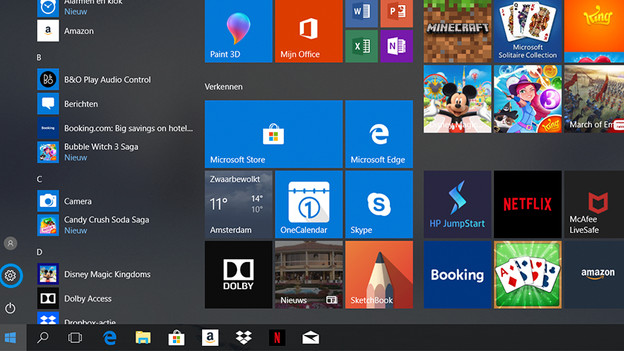
Step 1: go to Settings
- Click the Windows logo at the bottom left of the screen.
- A number of icons appear above the Windows logo. Click the icon with Settings, a gear.
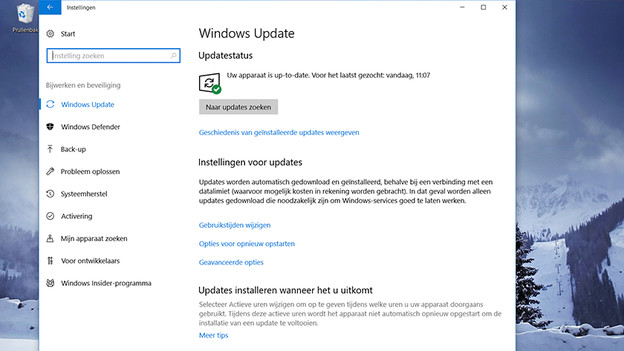
Step 2: finding the latest update
- In the newly opened window click the Update & Security button.
- Click Search for updates and Windows will automatically search for the latest update.
- As soon as the last update is installed you will see the message There are no updates are available.
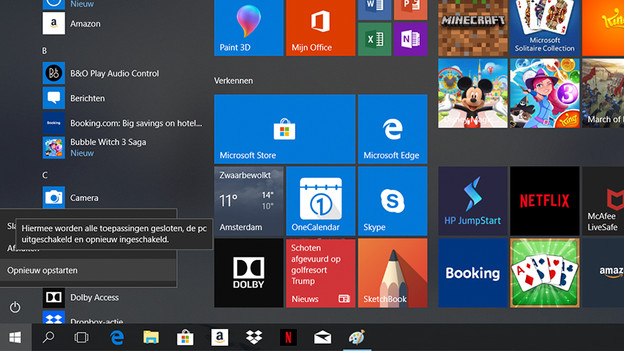
Step 3: restart your PC
- Click the Windows logo at the bottom left.
- A few icons will appear over the Windows logo. Click the On/Off icon.
- Select Restart
Article by Kasper
Desktop Expert.