Acer Predator X34P

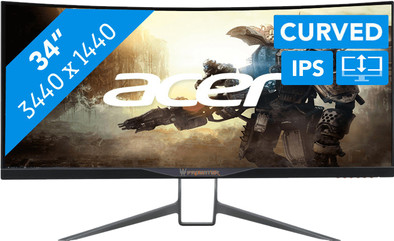
Never available again
View alternatives in the sidebar
View alternatives in the sidebar
Product number | 813627 | |
|---|---|---|
Manufacturer code | UM.CX0EE.P01 | |
Brand | Acer | |
Warranty | 2 years | |
Processing of your defect | Via Coolblue |
Screen size | 34 inches | |
|---|---|---|
Recommended display resolution | 3440x1440 | |
Sharpness | Quad HD (1440p) | |
Aspect ratio | Ultrawide (21:9) | |
Refresh rate | 120 Hz | |
Response time | 4 ms | |
Panel type | IPS panel | |
Brightness | 300 cd/m2 | |
Local dimming | ||
HDR support | ||
Contrast ratio | 2500 | |
Touchscreen | ||
Screen reflection | Anti-glare | |
Blue light filter | ||
Flicker-free technology | ||
Color space | sRGB | |
Color depth | 1 billion colors (10-bit) | |
Adaptive Sync | ||
Type of adaptive sync | G-Sync | |
Resolution width | 3440 pixels | |
Resolution height | 1440 pixels | |
Anti-reflection type | Matte | |
Horizontal viewing angle | 172 ° |
Height | 57,9 cm | |
|---|---|---|
Width | 81,7 cm | |
Depth | 30,9 cm | |
Weight | 9,96 kg | |
Color | Black, Silver | |
Including stand | ||
Material | Plastic | |
Cable management | ||
Appearance | Gaming | |
Curved |
Number of HDMI connectors | 1 | |
|---|---|---|
Number of Female HDMI type A 1.4 ports | 1 | |
Number of headphone jacks | 1 | |
Type of headphone connection | 3.5mm (TRRS) | |
Number of Female Standard DisplayPort 1.2 ports | 1 | |
Number of female standard USB-A ports | 4 | |
Female standard USB-A port version | 3.0 | |
Number of female 3.5mm TS Audio Jack ports | 1 | |
Number of female 3.5mm TRRS Audio Jack ports | 1 | |
Type of USB port | Standard USB-A | |
Number of USB ports | 5 |
Included by default | DisplayPort cable, HDMI cable |
|---|
Adjustable in height | ||
|---|---|---|
Tiltable | ||
Pivotable stand | ||
Pivot function | ||
VESA mount option | ||
VESA mount | 100x100mm |
Energy consumption standby | 0,4 W | |
|---|---|---|
Energy consumption active | 54 W |
Built-in speakers | ||
|---|---|---|
Sound system | Stereo | |
Webcam | ||
Split screen | ||
Kensington lock | ||
Best tested |
Image quality according to customers | Excellent | |
|---|---|---|
Design according to customers | Nice | |
Recommended for use | Gaming, Image editing and graphic design, Internet, email, and text processing, Watching movies in Full HD |
anything for a smile
Sharpness | Quad HD (1440p) | |
|---|---|---|
Curved | ||
Aspect ratio | Ultrawide (21:9) | |
Refresh rate | 120 Hz | |
Response time | 4 ms | |
Panel type | IPS panel | |
Color depth | 1 billion colors (10-bit) | |
Built-in speakers |
According to our monitor expert
G-Sync synchronizes the frame rate of your video card with this monitor and prevents tearing and stuttering, if you have an Nvidia video card.
With an ultrawide monitor you can see more of the playing field, if the game supports this.
The curved design gives a panoramic effect, so you experience games more intensively.
The 4ms response time can cause ghosting when playing games.
The base of this monitor is large and doesn't fit on every desk.
Play your favorite games on the Acer Predator X34P. This ultrawide monitor has a curved shape, which provides a panoramic effect in all your shooters or racing games. Without stuttering images, because thanks to the G-Sync technology, the gameplay runs smoothly. By default, this display has a refresh rate of 120Hz. This makes images look even smoother while playing. Even with fast shooters such as Battlefield 1, you won't have a stuttering image. Adjust your monitor in height and tilt the screen for the ideal sitting position while gaming.
Note:for QHD gaming, you need a powerful video card, such as an NVIDIA GeForce RTX GPU or AMD Radeon RX 5000 series GPU, an Xbox One, Xbox Series X or S, or a PlayStation 5.
5 stars
22
4 stars
5
3 stars
0
2 stars
0
1 star
0
Installatiegemak
Gebruiksgemak
Beeldkwaliteit
Prijs-kwaliteitverhouding
Design
My Asus PG279Q gave up the ghost and so I was looking for a new monitor. The Acer Predator X34P. This one had been listed on 'soon' at Coolblue for a while and Friday 8 June I saw that it was suddenly available. Just went through the specifications: G-sync, 120Hz, IPS(!) 34" at 3440x1440 and curved. You could say that this monitor is the IPS brother of the Z35P. The only functional difference (on the extra 1" of the Z35P na) is that the Z35P has a VA panel and the X34P an IPS panel. A non-functional difference is that the design of the X34P is sleeker than the Z35P thanks to the 'bezel-less' design of the X34P and the slightly thinner bezel at the bottom with a textured finish vs the smooth finish of the Z35P. The X34P also has LED lights on the bottom of the screen for more RGB fun.
The previous 3 'trial monitors' (LG 32GK850G / Samsung LC27HG70QQUXEN / Acer Predator Z35P) were VA and these did not convince me with their VA technology. I was therefore very curious about a new IPS screen. I had ordered the X34P so I could view it side by side with the Z35P for a good comparison. After connecting the X34P it was immediately clear to me: I am an IPS enthusiast! This point is difficult to explain, because the technology on paper contradicts my real-life finding: I find that the IPS screen has a nicer/better representation of colors and image in general than the Z35P! The image of the VA Z35P pales in comparison to the IPS X34P. The image of the X34P is clearer, more vibrant and feels sleek and 'real'. I don't have this feeling when I look at the Z35P and this may explain why I was not sold on any of the previous 3 'try monitors'. I just didn't find the image 100% with VA because I was probably so used to an IPS screen in the PG279Q. Note that this is a personal preference, but I find that IPS is superior to VA in terms of color and brightness. The black values and contrast of IPS are also visually equal or better than VA. When I saw the first image of the X34P, I was immediately sold, I immediately knew that this was my potential new monitor and not coincidentally, this was again an IPS screen.
I mentioned a contradiction above that I want to explain here: on paper, VA has better colors than IPS and better contrast and better black values. The big disadvantage of VA is the lower response time, which can lead to ghosting and smearing during gaming. Black crush is also possible, which means that black blends into non-black colors when moving, so that everything is equally speckled black. This all happens very quickly, but can be noticeable. Top E-athletes will suffer from this, but that club also has to play on a high-end TN panel. So I can't explain why I experience that an IPS screen has nicer colors for me, but it is just the case for me: I think the image of IPS is much nicer than VA and I hadn't even calibrated the IPS screen yet!
Now that I was convinced of the X34P, I still had to do some tests to see if I wanted to keep this particular sample. First, the overclock possible to 120Hz. You turn this on via the OSD (on Screen Display) of the monitor and then you can select the 120Hz in Windows. The 100Hz is guaranteed but the overclock to 120Hz is not. The X34(a) (the predecessors) had the flaw that not everyone could overclock from 60Hz to 100Hz. Flickering could then occur, which is of course a drama. One had to settle for 95Hz or even 90Hz. My X34P has no problem with the overclock to 120Hz at all! No flickering or anything, just smooth 120Hz.
Then the test for dead pixels and other panel defects. No dead pixels (finally)! To test the glow and any backlight bleed, I sat in a dark room looking at a black image. I was stunned to see that there was virtually no backlight bleed except for a small quarter circle at the very bottom right of the screen, which may also be due to the power LED light that shines through. This tiny quarter circle is so small compared to the headlights I had on my PG279Q that it is absolutely no reason for me to exchange my copy. IPS glow is also not noticeable if you just sit right in front of the monitor. With the PG279Q, I had 2 headlights on the left and bottom right of the screen that were noticeable when watching movies or playing dark games. This is not the case with the X34P. In fact: this monitor is uniformly blacker in its image with dark images than the Z35P, which should have better black values! I may have received a 'golden sample', or that the quality of the X34P is finally at a decent level for the price. Anyway, IPS glow, backlight bleed and pixel quality is 97% with this copy and that is very special considering all the internet reviews and forum posts!
Then using the monitor for various activities. The X34P deserves the predicate "Ultimate" from me! Of course you will be the first to work well with MS Excel. All those cells, so many cells visible in your screen, fantastic! Programming also works fine, but of course you don't have this screen for that. The crooked sentences as I experienced with the Samsung were not present with this monitor because of its ultra-wide format. Watch movies that have a 21:9 ratio. Star Wars, Bladerunner, LotR, it doesn't matter, you'll feel like you're in your own mini-cinema! Because my copy had virtually no IPS glow and no backlight bleed, black/dark scenes looked great and no irritations were visible. Gaming on the X34P was a new experience for me. I had never played on an ultra-wide before, so my "Wow!" factor" is partly due to that, but I had already tried the Z35P, so I did have a comparison with ultra-wide gaming. is an IPS panel for me a much nicer experience than a VA panel. This also applies to gaming. Running around in Fallout 4 I experienced nicer and nicer on the X34P than on the VA panels. The colors come across more natural and beautiful, no matter what the technology shows on paper. Note: this screen has 5 million pixels vs. the 3.6 million pixels of a 27" non-ultra-wide screen at 1440p. So you're going to need a tough video card to constantly reach 100fps with high settings. A GTX 1080 is really minimal for me! Even my GTX 1080ti struggles to consistently reach 120 fps in some games on high/ultra settings. If you are satisfied with less eye-candy and below 100fps, a GTX 1070ti would still just be possible, but then you will really have to make concessions. Of course there is the G-sync module to help you. I've played with G-sync on for almost 2 years on my PG279Q and (then) a GTX 1070 nvidia card and I played without G-sync with the Samsung LC27HG70QQUXEN (freesync). I don't want to be without G-sync anymore! I'm an Nvidia gamer anyway, not an AMD gamer. G-sync is expensive but it really proves its power very well. When your fps drops below your screen's max Hz, G-sync takes over and lowers your screen's Hz to match your actual fps. This ensures that you always have a smooth image, even if you dip below 60fps! Visual problems come when your fps and your Hz are out of sync and G-sync fixes that for you. No tearing, no stuttering, just smooth image. You only start to notice it when you get below 45 fps, then you see that you have low fps. For example Fallout 4 downtown, that's just dramatic, even on my system (i6700K@4.6Ghz, 16GB RAM and a 1080ti). But when you just get good fps on ultra settings, G-sync does its job well without being noticed: it only becomes noticeable when G-sync is no longer there. This IPS panel provides very good gaming performance, I have not tested this extensively with all kinds of tools. What matters to me is how it looks when I'm gaming myself. I can say that I have not noticed anything bothersome and that gaming is just a very pleasant experience. Images are smooth, no ghosting/smearing, everything looks tight to the naked eye. I'm not a fan of using tools to reveal all imperfections, because in real-life you hardly notice them. For example, the YouTube channel 'Hardware Unboxed' indicated that the colors of the X34P are not as good as the predecessor X34. They immediately say that no one will notice this. So you mention a not noticeable downside in everyday use. Pointless! Gaming is just fine, period!
I really like the design of the X34P (and also the Z35P). Acer has made the monitors less gamey, which I think is a plus. The foot is very sturdy and sticks out 30cm with the thin metal legs on the left and right. Thanks to the mild slope, you can still rest your keyboard nicely on it, so that you don't lose too much space on your desk. The entire assembly feels very sturdy, the screen doesn't wobble and the adjustment options feel just right when you use them. Not too soft but not so stiff that you have to use force. The monitor really looks like a picture on your desk with its thin bezels and slick bottom. The lights are a nice addition, different colors and beam options (fixed, breathing, flashing, ripple). These can also be on when the monitor is in standby mode, a kind of reading light if you want to use it that way. All in all, I think the monitor looks great on my desk.
Finally the curve. The curve really helps with immersion, this is not a gimmick like I always thought! The curve causes the image to rotate with your head, so that you look straighter at the screen from the corner of your eye. With an 80 cm long monitor reasonably close to you, that is not a superfluous luxury.
Erik Romunde
11 June 2018
Automatically translated from Nederlands
Much cheaper than other comparable screens. Ips glow in my copy is very minimal, I don't notice this in 99.99% of my use.
Wouter Stöpetie
17 October 2019
Automatically translated from Nederlands
After a lot of searching and doubting/reading forums, I chose the Acer X34P. I don't regret this at all, strong yet I now have 2!
The screens are set with Techspot's OSD settings. brightness: 77 Contrast: 50 Color mode User R42 G42 B46 Gamma 1.9 and overdrive Normal.
It will cost you a rib out of your body but how great is this!
Wakkie
4 June 2019
Automatically translated from Nederlands