Written by Deanne
Edited on
19 May 2025
·
14:41
How do you take a screenshot in Windows?
A screenshot is an easy way to take a 'photo' of your screen. This is useful if you want to save a purchase confirmation, or if you want to save something else. But how do you take a screenshot? We'll explain it for a laptop with a Windows operating system here.
Different types of screenshots
First, think about what kind of screenshot you're going to take. Want a screenshot of your entire screen? Do you need a screenshot of one window or program? Or do you want to select a part of the screen yourself and take a screenshot of it? There are several ways to take a screenshot.
- Use the key combination: Windows + Shift + S
- Use the Print Screen button
- Use the Snipping Tool

Option 1: use the key combination
The easiest way to take a screenshot is with the Windows key combination.
- Press 'Windows' + 'Shift' + 'S' at the same time.
- A bar with various screenshot options will now appear at the top of your screen.
- Choose what kind of screenshot you're going to take and select it in the options bar. The options are: take a rectangular or freeform screenshot of part of the screen, a window screenshot, or a full screenshot.
- Did you take a screenshot of the part of the screen? Hold down the left mouse button and move your mouse across the screen.
- Then, save the screenshot to a text file or via your clipboard.
Press 'Windows' + 'Shift' + 'S' at the same time.
Choose what type of screenshot you want to take.


Option 2: use the Print Screen key
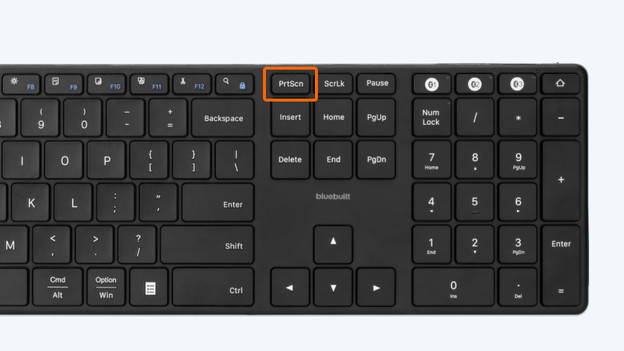
You'll often find a Print Screen key on the keyboard. You'll usually see the abbreviation PrtScn on the key. Not all keyboards and laptops have this button.
- Press the Print Screen button. You're now taking a screenshot. Is the text blue? Press 'Fn' + 'PrtSc'.
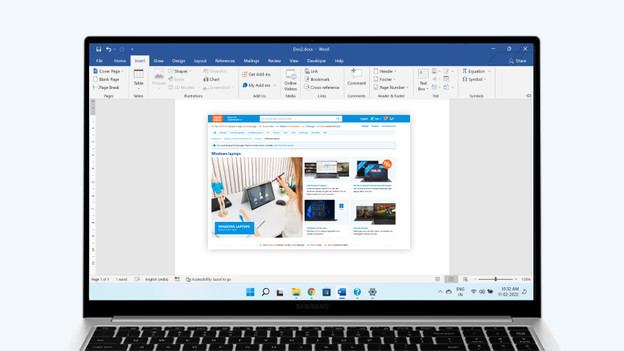
- Your screenshot is now on your clipboard. Go to the file where you want to paste your screenshot, such as a text file or a chat.
- Then, click 'Ctrl' + 'V'. You've now pasted your screenshot into a file.
- Do you want to save your screenshot? Go to your clipboard and click 'Save'.
Find the Print Screen key
Go to the file where you want to paste your screenshot.
Press 'Ctrl' + 'V'.

Option 3: use the Snipping Tool
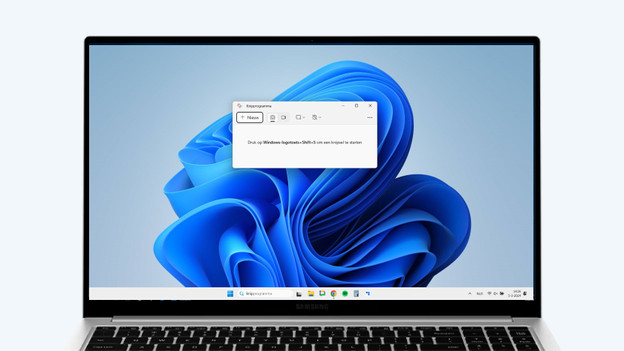
Windows has a standard Snipping Tool that you can use to take a screenshot.
- Search for 'Snipping Tool' in the search bar and click on the program.
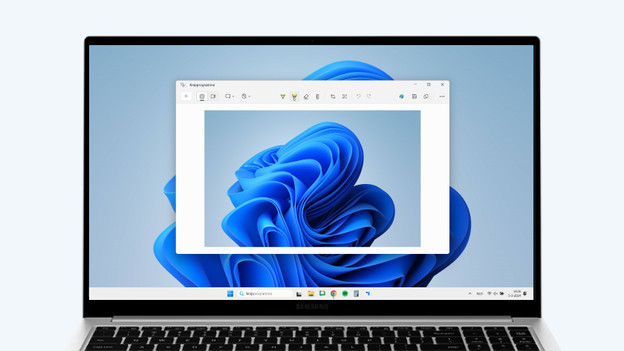
- Now, select the part of the screen you want to take a screenshot of. Hold down the left mouse button and move your mouse across the screen.
- Your screenshot will now appear in a new window.
- Click 'Save'. You can now choose the name of your screenshot and where you want to save it.
Find the Snipping Tool in Windows.
Take a screenshot of your screen.
Save your screenshot.