Written by Kasper
Edited on
28 February 2023
·
13:55
How do you use Remote Desktop in Windows Pro?
With the Remote Desktop application by Windows Pro, you can connect to another computer remotely. This is especially useful when you're working from home, for example. But how do you use Remote Desktop? And how do you set it up? I'll explain this for you in this article.
What do you need?
- A computer or laptop with Windows Pro
- Your computer or laptop from work with Windows Pro
- An internet connection

Step 1: allowing external connections
Since external connections are not allowed by default, you'll first need to allow them. Enter 'external connections' in the search bar and select 'allow external connections.' After that, click on 'allow external connections' and choose the option to only allow connections via Remote Desktop. This is an extra safety measure. Afterward, click on apply and finally click on ok.
Stp 2: disabling sleep mode
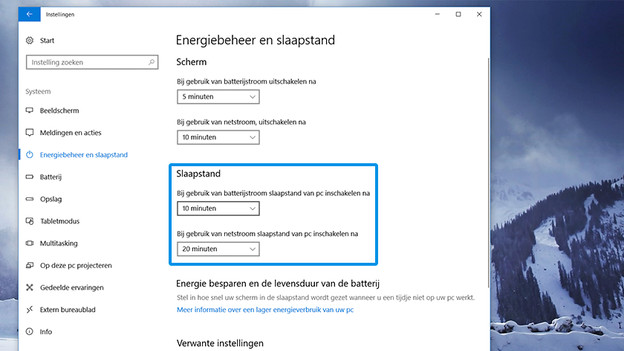
To fully utilize Remote Desktop, it's important to disable sleep mode. This way, you're sure that the PC, if it's turned on, won't go into sleep mode. Navigate to 'Settings,' then go to 'System' and 'Power and Sleep.' Once you're there, go the Sleep mode and click both options that say 'never.' This way, you're computer will never go into sleep mode.
Step 3: connecting to your PC at work
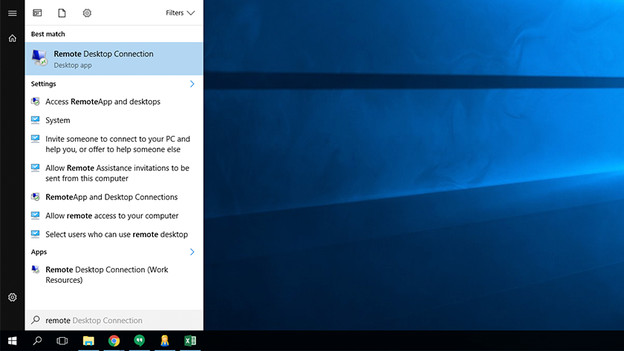
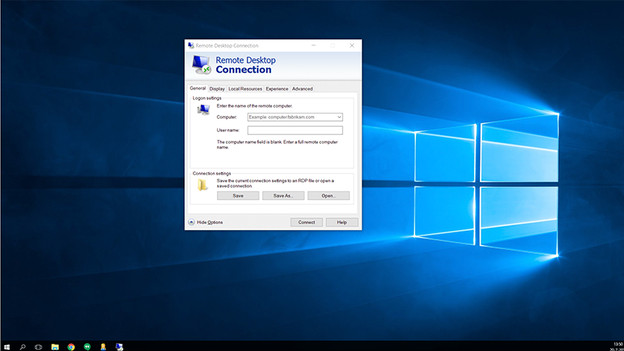
If you want to receive access to a different PC, you'll need to know the PC's name. Write down the name of the PC you want to connect to, or retrieve the computer's IP address. Afterward, go to the search bar,enter 'Remote Desktop,' and open the application. Once you're there, enter the PC's name or IP address, and enter the username that you would usually use to log in on the relevant computer. Once you're done, click 'connect.'
Step 4: getting started
Before you get started, it's possible that you'll receive a Windows safety notification. This is related to the fact that you're connecting to your computer from a different location. If you're shown this screen, select 'I still want to connect.' If you've correctly followed the steps above, you'll now see your work PC's desktop and you can get started.