Written by Maurits
Edited on
11 August 2023
·
11:46
How do you set up your Bose SoundTouch speaker?
Before you can listen to your music, you have to get the Bose SoundTouch ready for use. In this article, we'll walk you through the setup with a few simple steps.

Set up your Bose SoundTouch.
In a few steps, we'll set up your Bose SoundTouch speaker. Before we start, we'll briefly list the steps here:
- Step 1: turn on your smartphone or tablet.
- Step 2: connect the device to a socket.
- Step 3: install the Bose SoundTouch app.
- Step 4: open the app.
- Step 5: connect to the Internet.
- Step 6: connect to WiFi.
- Step 7: name the speaker.
- Step 8: create an account.
- Step 9: add streaming services.

Step 1: turn on your smartphone or tablet
It's important that your smartphone or tablet is turned on during the setup. Make sure the battery is charged for at least 60%.

Step 2: plug the device into a socket
Plug the Bose SoundTouch speaker into a socket with the included power cable. You can find the input for the cable on the back of your speaker. Then, press the power button on the Bose SoundTouch speaker. This button is located on the top of your speaker.

Step 3: download the Bose SoundTouch app
Find the App Store or Google Play Store in the menu of your smartphone or tablet.

Step 4: open the app
Once the download is complete, the app will appear in the menu of your smartphone or tablet. Open the app on your smartphone or tablet and click 'Get started'.

Step 5: connect to the Internet
The app now asks you how you want to connect the speaker to the internet. There are 2 ways to do this, either via WiFi or via Ethernet. Choose the WiFi option. Tip: turn on Bluetooth on your smartphone or tablet if you want the setup to go faster.

Step 6: connect to WiFi
Go to the WiFi settings on your smartphone or tablet. Select the temporary WiFi network Bose SoundTouch. If you can't see the network, tap 'I don't see this network'. Then, press and hold the 2 and volume button for 5 seconds. On the image, you can see how to do it. Can't connect your speaker to the WiFi network? Read the article below to find out what each WiFi symbol means. If the Bose SoundTouch network is visible in your WiFi settings, tap it. You'll then see a screen where you can select your WiFi home network. Select it. Now, enter the password of your WiFi home network.

Step 7: give your speaker a name
The app will ask you if you want to rename the speaker. You don't have to, but we recommend it. If you're planning to use multiple Bose speakers, it's a good idea to give each speaker a name that refers to its location. The advantage is that you can easily play music at those locations remotely with the Bose SoundTouch app.
Step 8: create an account
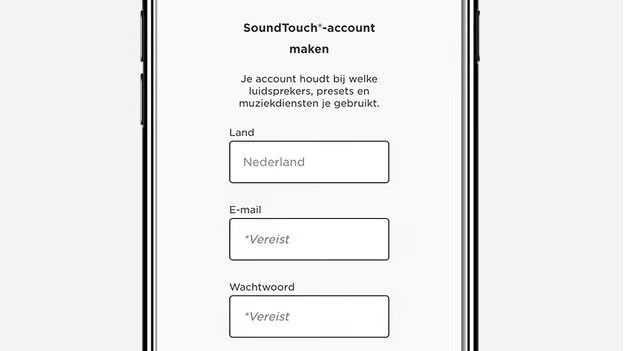
The app now asks you to create a Bose account. Fill out the empty fields. If you already have a Bose account, click 'I already have an account'. Then, log in with your existing Bose account. Tip: write down the login information you came up with. You'll need it if you want to install the app on a different device.

Step 9: add a music service
The setup is complete. You'll see a welcome message on the screen now. You can then add a music service like Spotify or Deezer on the left. The service will be added to the Bose SoundTouch app. You can also select radio stations in this menu. Playlists and radio stations can be saved under the preset buttons on your speaker. Click the article below to find out how to do that.