
Written by Jan
Edited on
24 June 2025
·
14:09
How do you solve problems with the touchpad of your laptop?
Your laptop touchpad no longer works. Maybe your Bluetooth mouse is causing problems, or you accidentally turned off the touchpad. There's a good chance that your touchpad will work again with a simple solution. Read 6 tips to help you solve problems with your touchpad here.
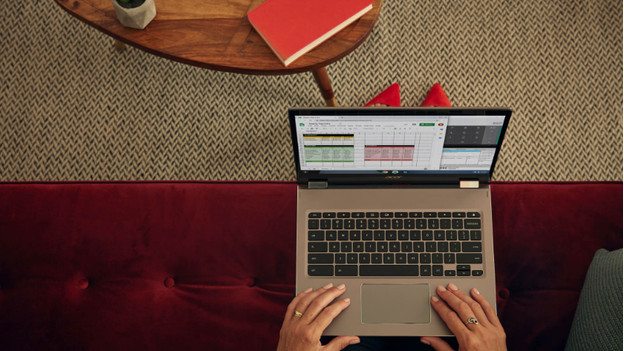
Solve problems with your laptop touchpad
With these tips, you can get your touchpad to work again:
- Tip 1: check if Windows has crashed
- Tip 2: use the touchpad button
- Tip 3: disconnect external devices
- Tip 4: check the mouse settings
- Tip 5: check the driver
- Tip 6: install the driver again
- Didn't find a solution? Have your laptop repaired
Tip 1: check if Windows has crashed
Rule out whether the problem is your touchpad by first checking if Windows hasn't crashed.
- Press the Windows key on your keyboard and see if the start menu appears on your screen.
- Isn't that the case? That means Windows has crashed. Press and hold the power button for about 10 seconds to turn off your laptop. After your laptop has restarted, the problem is solved.
- Does the menu appear? That means Windows hasn't crashed and we can move on to solution 2.
Tip 2: use the touchpad button
Note: this tip only works when your laptop has a touchpad button.
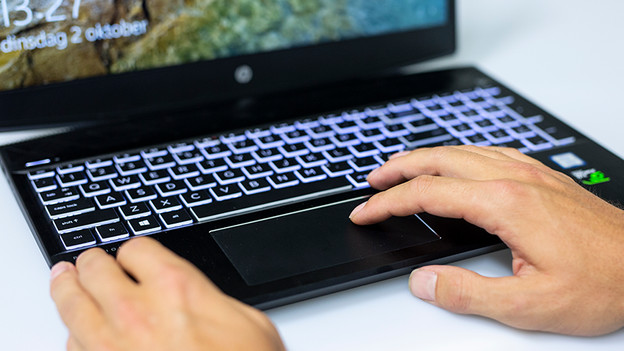
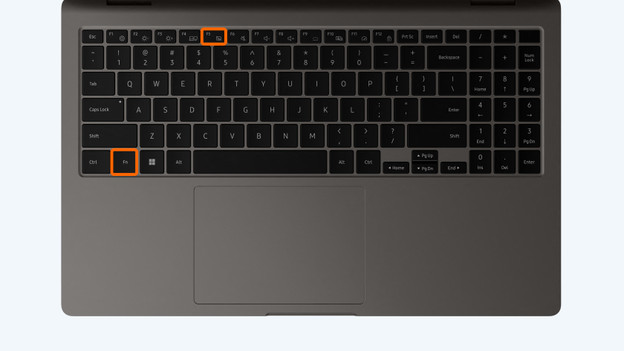
Some laptops have a physical button that turns the touchpad on and off. You can recognize it by the touchpad icon. You often have to use the Fn key in combination with one of the F keys at the top of the keyboard. You can find the Fn key next to the Windows key. Find the physical touchpad button and press these at the same time.

Tip 3: disconnect external devices
Sometimes, external devices prevent your touchpad from working. A mouse or trackball sometimes automatically disables the touchpad. That's why you should disconnect all external devices that are connected to your laptop.
Tip 4: check the mouse settings
Sometimes, a laptop setting causes the touchpad to not work properly. That's why you should go to your settings with a mouse and go through the following steps:
- Select the Start icon at the bottom left of your screen.
- Next, select 'Settings' (recognizable by the gearwheel icon).
- Go to the left menu and select 'Bluetooth and devices'.
- Look for 'Touchpad'.
- Check if the on/off button under 'Touchpad' is on. If not, switch it on by clicking it.
- Test if your touchpad works.
Select the Start icon and choose 'Settings'.
Go to 'Bluetooth and devices'.
Look for 'Touchpad'.
Check if 'Touchpad' is on.


Tip 5: check the driver
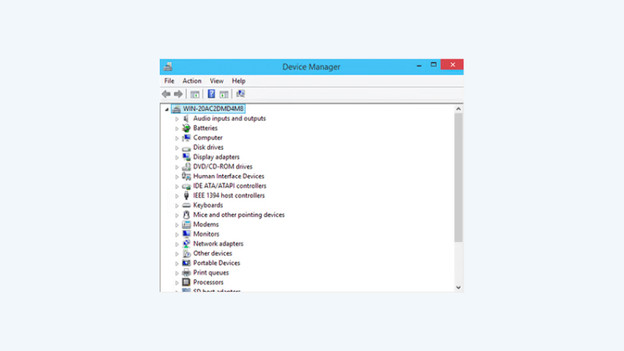
If the previous solutions don't work, it's useful to check the driver. There's a good chance that something is wrong with the mouse driver.
- In the taskbar search box, find and click 'Device Manager'.
- Click 'Search automatically for updated driver software' and then select 'Update driver software'.
Didn't that help? Reinstall the driver.

Tip 6: install the driver again
- Search for 'Device management' in the search bar of the taskbar and select it.
- Look for the mouse or touchpad in your driver.
- Right-click on the name of your mouse or touchpad and select 'Remove'.
- Restart your laptop. The driver will be reinstalled.

Have your laptop repaired
Did none of these solutions work? There's a big chance the touchpad is broken. We recommend to have the touchpad repaired. Contact our customer service, so they can help you. A broken touchpad is often covered by the manufacturer's warranty. If that's not the case, we also have repair services.
Article by Jan
Laptop Expert.