Advice on Synology NAS
The Synology NAS devices are known for their user-friendliness and extensive software and options. For example, you can use a Synology NAS as a personal cloud, and as a business server. On this advice hub, you can find all the information on Synology NAS, like how to set it up, update it, and more.
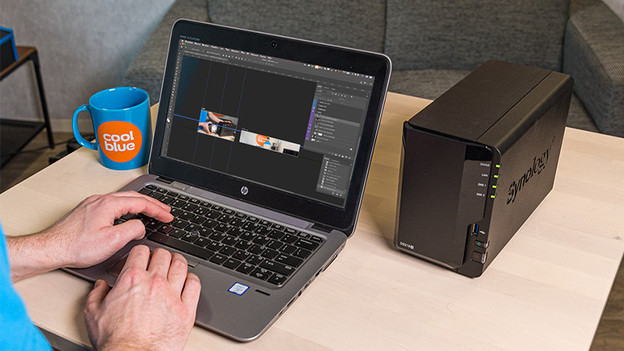
Synology DiskStations
The Synology DiskStation NAS doesn't take up much space, and they combine convenience with a large number of applications. You can manage your Synology DiskStation NAS with your software from the app store, so you don't need to download external programs. This way, you can easily set it up as a business server or personal cloud.
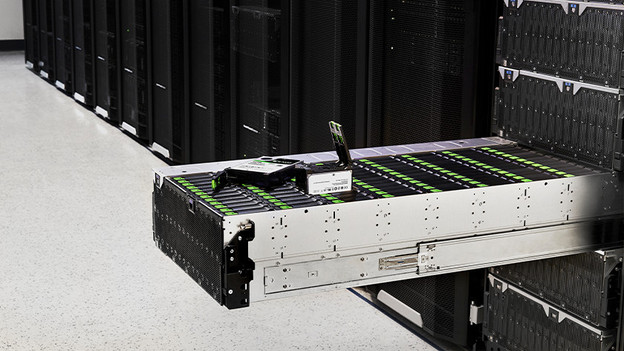
Synology RackStations
With a Synology RackStation, you can create a large storage capacity, so you can perform demanding tasks with multiple people at the same time. That's useful for in a data server, or when you have a lot of IP cameras running around your office, for example. You can manage a RackStation just as easily as a DiskStation, but it has more room for hard drives.
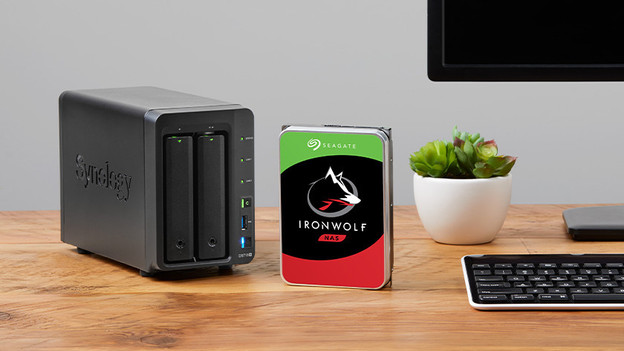
Synology NAS bundles
A NAS doesn't work with an internal hard drive, of course. Unfortunately, a NAS often doesn't have a pre-installed hard drive to get started right away. Our Synology bundles contain both a NAS and 1 or more internal hard drives, so you can get started right away.
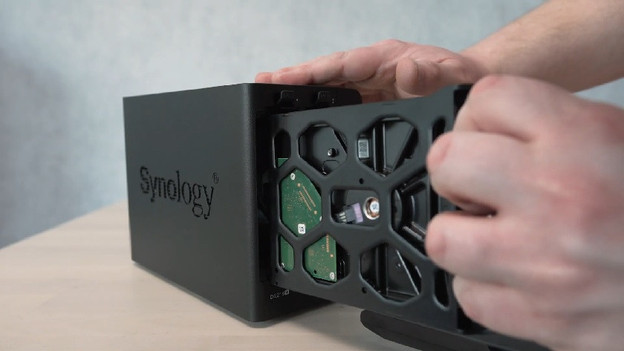
Set up your Synology NAS
You bought a Synology NAS and want to get started right away. It's more easy to set up a Synology NAS than you might think, so we're happy to help you get started. In the advice article below, we'll give a step-by-step explanation, so you can set up your NAS properly.
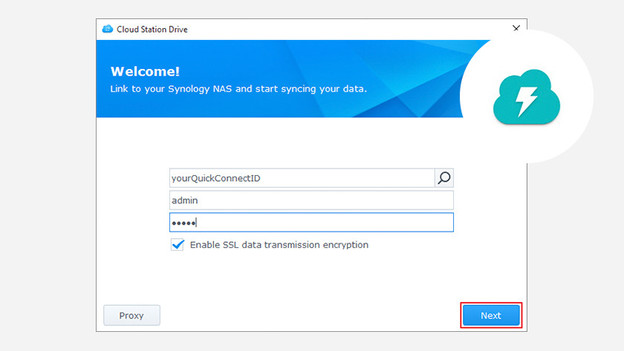
Before you get started
After you set up your Synology NAS, you have to arrange a few things before you can use it. You might want to use Plex for movies and series, or make the NAS remotely accessible for your colleagues. In the following advice articles, we'll give a step-by-step explanation on how to make the NAS fully ready to use.

Transfer data
Now that your NAS is ready for use, you want to transfer data from your Windows or Mac computer. Because these steps differ, we'll give you advice on how to do it correctly in these articles.
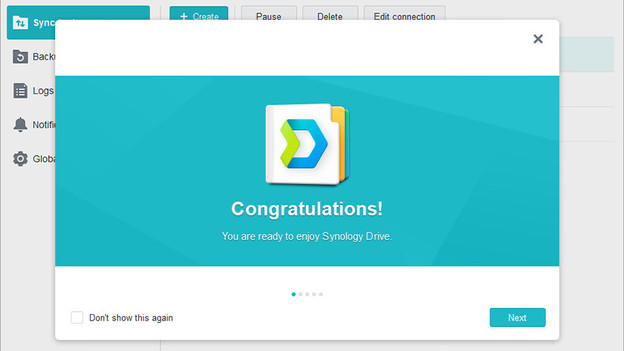
Set up Synology apps
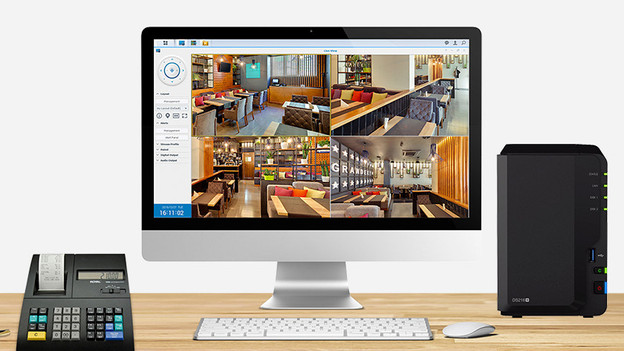
With a Synology NAS, you can use multiple apps, like Synology Drive Server. There are more apps, of course, like Download Station to manage your downloads, or Synology Surveillance Station to view the images of your IP cameras. You can read which apps there are and how to set up Driver Server here.
Note: Synology Cloud Station isn't supported anymore since 30 April 2021.
Use Synology NAS
In the advice articles below, we'll explain how to use a Synology NAS for certain situations. For example when you want to set up the NAS as surveillance station. Or when you lost your password and you want to reset the NAS. This way, you can get the most out of your Synology NAS.