
Written by Deanne
Edited on
4 March 2025
·
10:52
How do you change the settings of the laptop lid in Windows?
Want the external screen to stay on when you close your Windows laptop? Or do you want to screen the turn off and the laptop to go into sleep or hibernate mode? In this article, we'll explain how to change the settings in 3 steps.
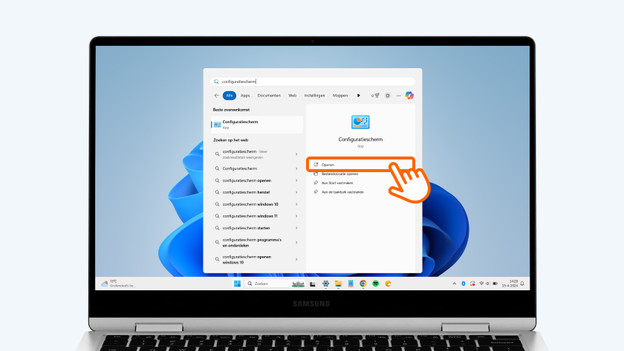
Getting started with the settings
You can adjust the settings for when you close your laptop in 3 easy steps:
- Go to the control panel and look for 'Power options'.
- Adjust the settings of the sleep and hibernate mode.
- Change the settings for closing your laptop lid.
Note: not every laptop has this setting. It depends on the model.
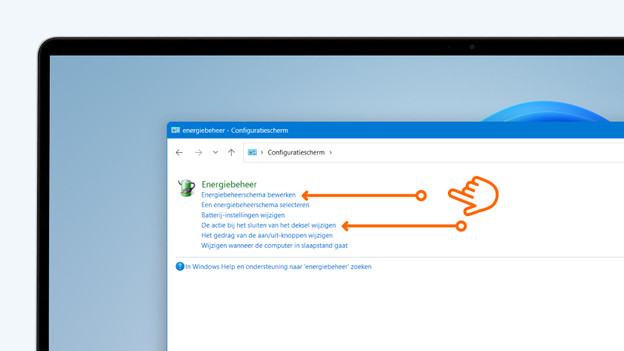
Step 1: go to the control panel
- Search 'Control panel' in the Windows search bar.
- Open the control panel.
- A new window will open. Search 'power options' here.
- Do you want to change the sleep and hibernate mode? Go to step 2.
- Do you want to change the settings for closing your laptop? Go to step 3.
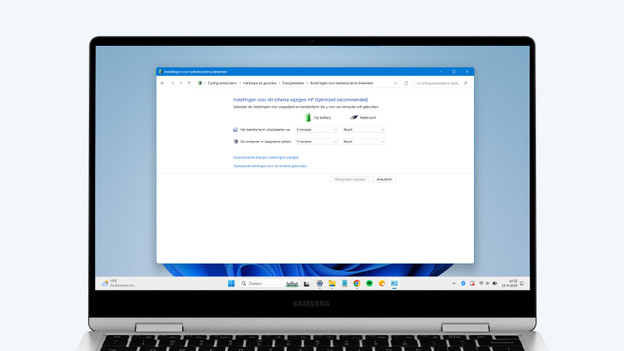
Step 2: adjust the settings of the sleep and hibernate mode
- Double-click 'Change power plan settings'.
- Here, you can adjust after how many minutes your laptop screen can turn off.
- You can also change after how many minutes your laptop goes into sleep mode here.
- Select 'Save changes' when you've adjusted the settings.
- Want to change more setting? Select 'Edit advanced power settings'.
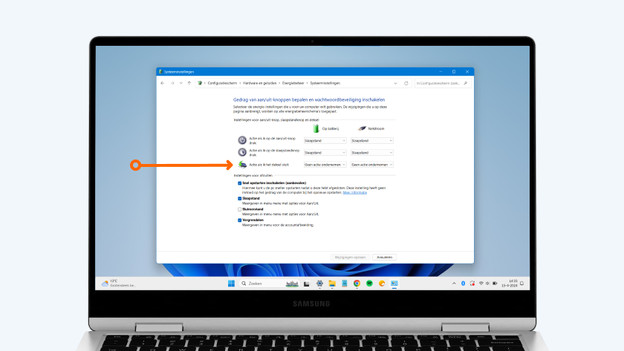
Step 3: change the settings for closing your laptop lid
- Double-click 'Change what closing the lid does'.
- Adjust the settings of the header 'When I close the lid' to your liking.
- Is your laptop connected to an external screen and do you want the second screen to stay on when you close your laptop? Choose 'Do nothing' for 'On battery' and 'Plugged in'.
- Select 'Save changes'.
Article by Deanne
Laptop Expert.