Written by Evany
Edited on
27 January 2025
·
13:10
3 ways iPhone and iPad work together
The Apple devices work together seamlessly thanks to the so-called Apple eco system. The same is true for the iPhone and iPad. With the 3 tips in this article, you can turn your iPhone and iPad into an extension of each another.
Get started
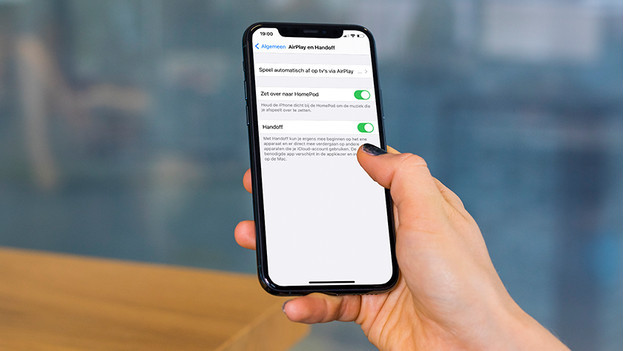
If want your iPhone and iPad to work smoothly together, you have to go through a couple of steps. Log in with the same Apple ID on both devices, connect the devices to the same WiFi network, turn on Bluetooth and Handoff. Handoff is easy to turn on. You go to 'Settings' and tap 'General' > 'Airplay and Handoff'. Turn on 'Handoff'.
- Tip 1: use Universal Clipboard
- Tip 2: use continuity with Handoff
- Tip 3: make and receive calls
Tip 1: use Universal Clipboard
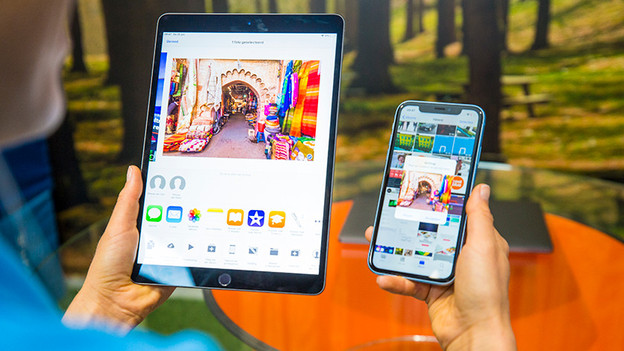
With the universal clipboard from iPhone, you can simply copy texts, images, and more from one Apple device to another. For example, if you're copying a report from the Photos app on your iPhone, you can easily paste it in Pages or Notes on your iPad. At the top of the screen, you can see from which device the image originates.
Tip 2: use continuity with Handoff
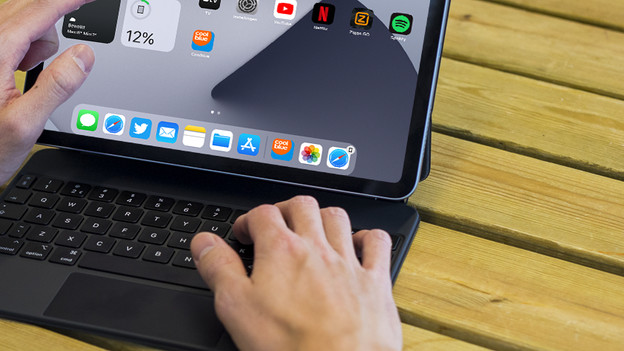
Thanks to Handoff, you can easily continue to work or browse the internet on a different Apple device. For example, you can finish an email on your iPad that you started on your iPhone. This function also works in Safari. Sometimes it's easier to scroll through the products of a web store on a larger screen. In that case, you can grab your iPad. You'll see an extra Safari icon on the right in the dock. When you tap it, your iPad will open the page you were scrolling through on your iPhone.
Tip 3: make and receive calls
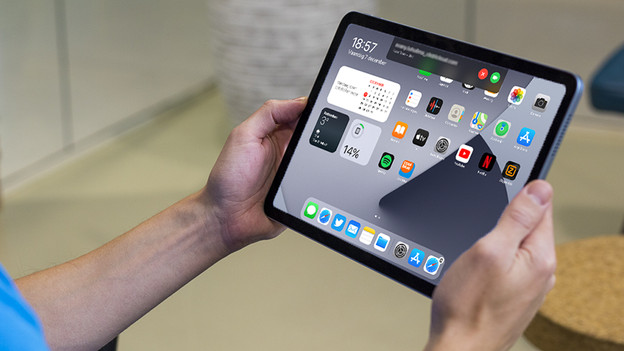
You can make and receive calls with your iPad. This is useful if you've muted your iPhone and are working on your iPad. You do have to set this up on your iPhone and iPad first.
- On iPhone: Settings > Phone > Calls on Other Devices. Turn on 'Allow Calls via Other devices' and check both for 'Allow Calls via'.
- On iPad: Settings > Facetime > Turn on 'Calls via iPhone.
Article by Evany
Apple Expert.