Written by Siebe
Edited on
30 December 2024
·
08:49
How do you activate your free Microsoft 365?
You've purchased a laptop that includes Microsoft Office (365) for free for 1 year. You have to activate this first. You can read how to activate your free Office suite on your new laptop below.
Activating your free Office suite via Microsoft
- Open the Microsoft Office program of your choice
- Select a Microsoft account or create one
- Log in and accept the conditions
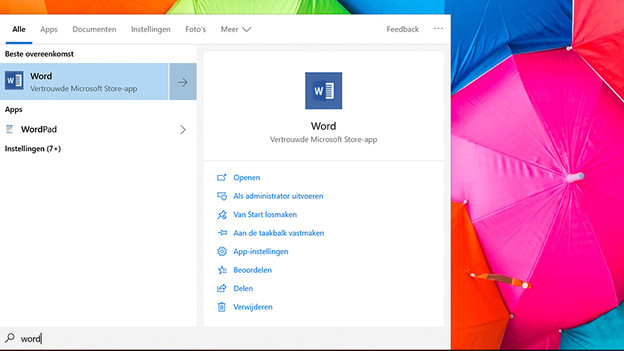
Step 1: open the Office program
On a laptop with free Office for 1 year, programs like Word and Excel are pre-installed. You have to open one of these to start the activation. Click 'Start' and type in Word or Excel. Start the program by clicking on the icon.
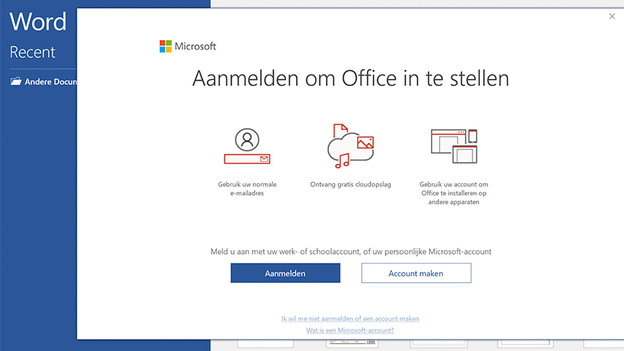
Step 2: choose an account
An activation screen will appear. Before you click the green button, it's important that you select the correct email account. This email account has to be linked to a Microsoft account. With this, you log in to Office in the future. Do you want to use a different account? Click the text to use a different account. If you don't have an account yet, create one for free at https://account.microsoft.com/account. Is everything in place? Click the green button.
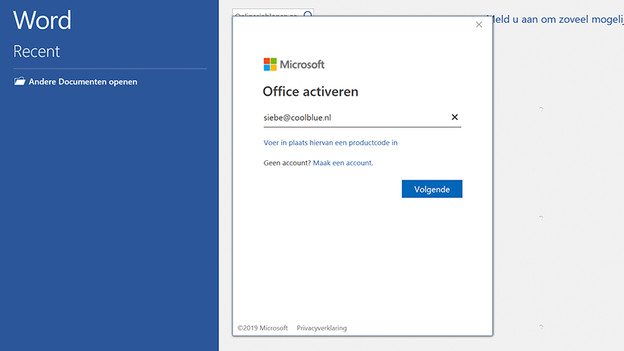
Step 3: log in to Microsoft 365
In the next window, enter the email address you want to link Microsoft 365 to. Enter the password and click 'Next'.
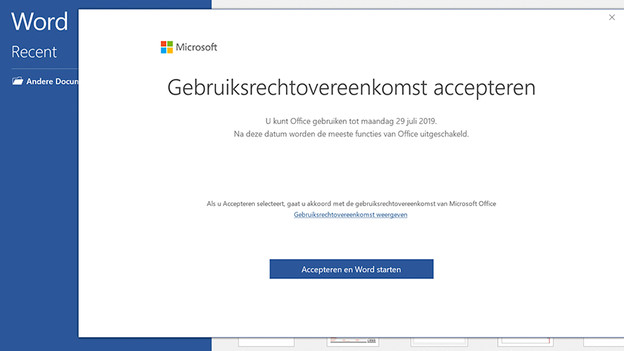
Step 4: accept the conditions
If all goes well, you'll now see the conditions. Confirm with the green button. Microsoft Office is activated now and you can use Office for free up to and including the date shown at the top right of the screen.
Step 5: get started
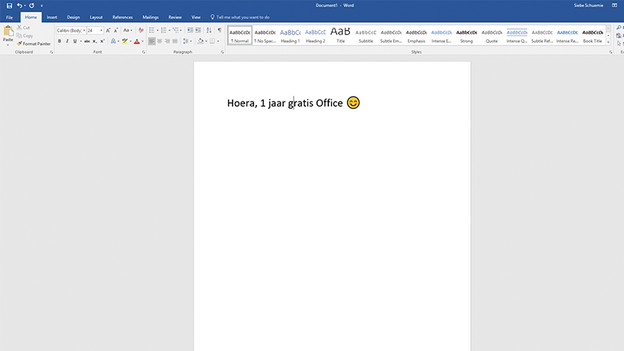
As soon as you activate Microsoft Office, you'll receive a confirmation email. It'll be sent to the address you provided in step 3. This also contains the activation code. Don't enter it anywhere, but keep it in a safe place. You can use this code when you reinstall Windows in case of problems. You can now get started with Office. Have fun!