Written by Tobias
Edited on
7 July 2025
·
09:13
How do you update the drivers of your laptop?
Drivers make sure all parts of your laptop work in the operating system. If you have laptop problems, they're often caused by an old or wrongly installed driver. In this article, you can read how to update the driver.

Update driver
You can update your driver in 3 fast steps.
- Choose the part that doesn't work properly
- Update the driver
- Restart your laptop
Step 1: choose the part that doesn't work properly
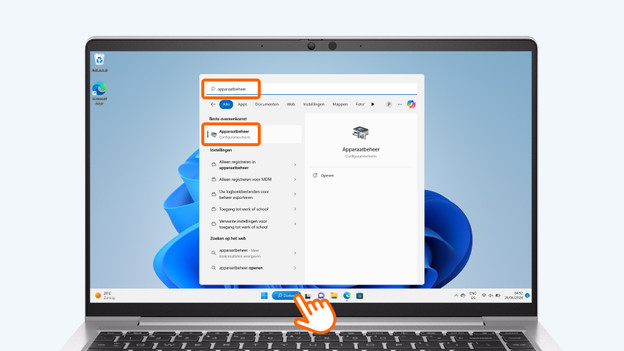
- Click on the search bar, type 'Device Manager' and click on Device Manager in the menu. The configuration screen will open now.
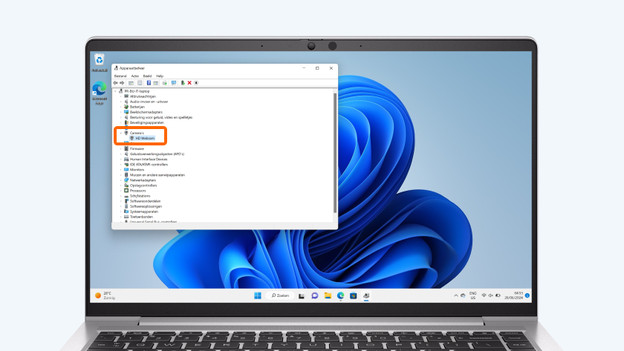
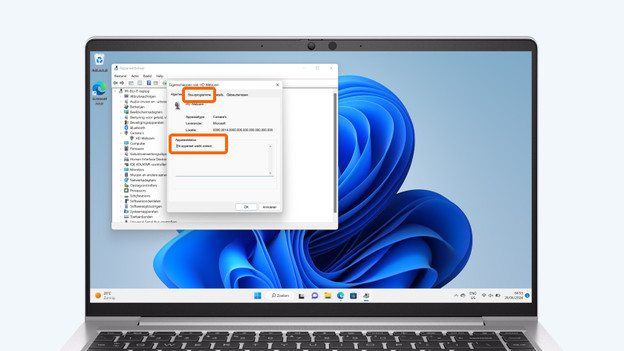
- Double-click on the part that isn't working properly. Double-click on the option that's causing problems. When the driver works well, it says This device is working properly.
- Does it say the part is working properly even though you notice this isn't the case? You might be able to solve the problem by reinstalling Windows.
Click on the search bar and type 'Device Manager'.
Double click on the part that doesn't work properly.
Here, you can see if your driver works properly.
Step 2: update the driver
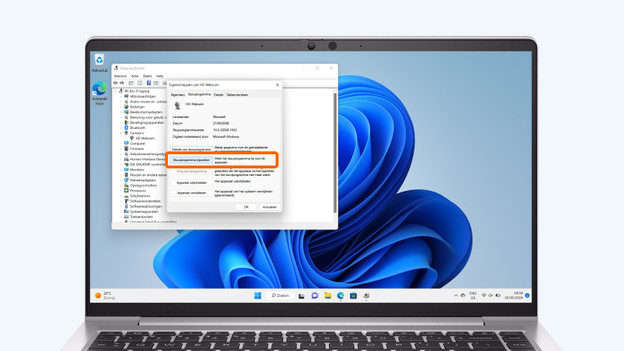
- Did you find the part that isn't working properly? Click on Driver in the menu of this part.
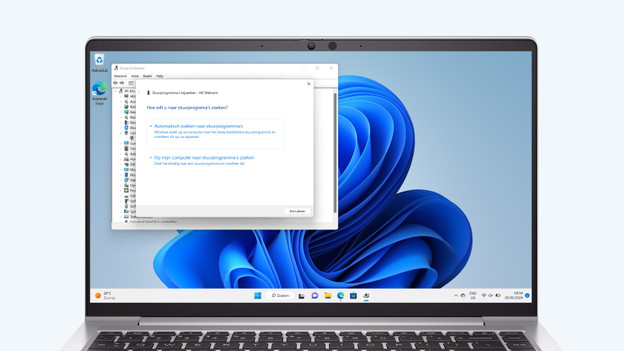
- Then click on Update driver. A new screen with 2 options will open. Choose Search automatically for updated driver software.
- Do you have a driver on a USB flash drive or on your hard drive? Choose the second option: Search for drivers on my computer.
Click on 'Driver'
A new screen appears with 2 options.
Step 3: reboot your laptop
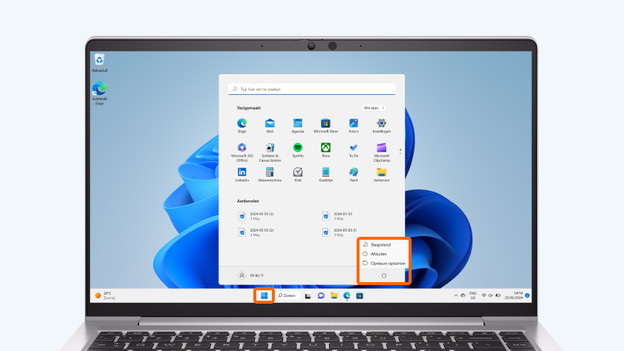
- Click the Windows logo
- Click the Power icon.
- Choose Restart.
Article by Tobias
Laptop Expert.