Written by Giorgos
Edited on
6 January 2025
·
08:20
How do you upgrade from Windows Home to Windows Pro?
You have a laptop or computer with Windows Home and want to upgrade it to Windows Pro. Because you want to use the PC for business, for example. In the step-by-step plan, we'll explain what you need and how to do this installation from start to finish.
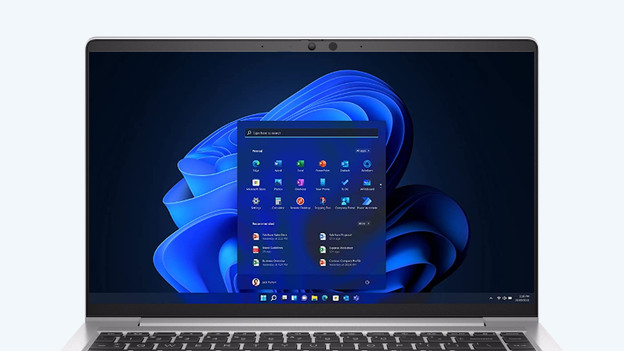
Upgrade Windows Home to Pro in 3 steps
You can upgrade Windows Home to Pro in 3 small steps. We've listed them for you here:
- Step 1. Upgrade Windows via the Microsoft Store
- Step 2. Check the activiation status
- Step 3. Check the update
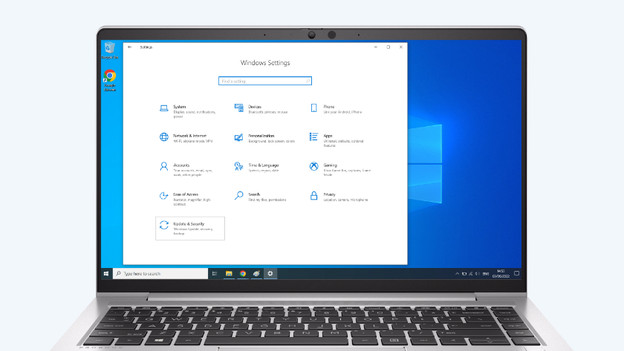
Step 1: upgrade Windows via the Microsoft Store
You can update Windows the fastest via the Microsoft Store. You can buy a license for Windows Pro directly and the update starts automatically. This license only applies for the computer on which you do the update and you can't use it on other PCs. Do you want to update your Windows PC in a different way? Go to step 2, where we explain manual installation. Otherwise, go to step 3 right away.
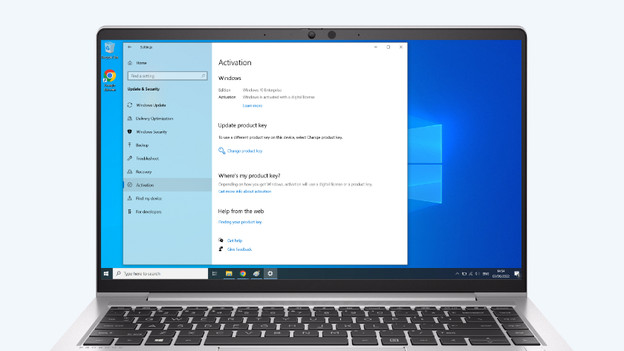
Step 2: check the activation status
When you want to do the update manually, first check which Windows version is on your PC. Go to the 'System' menu in the settings screen and choose 'Activation'. At the top of the page, you can see which Windows version you have and if it's activated. When this is correct, click 'Change product key'. Enter the 25-digit product code for Windows Pro and click 'Next'. Your PC will now start the update.
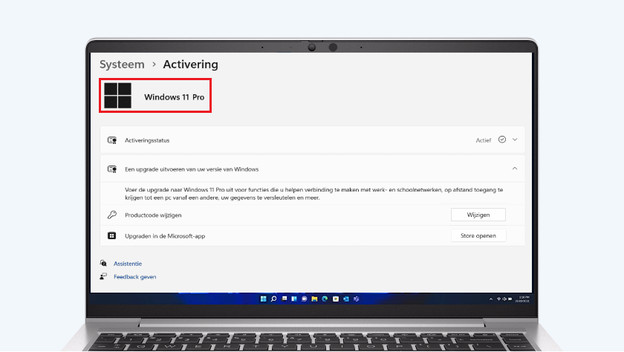
Step 3: check the activation status
After the update, you see a notification on your screen. For an extra check, go back to the activation screen in your settings. Check which Windows version is on top of the page and if it's updated to Pro.
Article by Giorgos
Laptop Expert.