Written by Deanne
Edited on
10 August 2026
·
07:54
How do you set up a Windows laptop?
You finally got your new Windows laptop, and of course you want to use it right away. In this article, we'll explain how to set up your new laptop with Windows 11 in 5 steps.

Setting up your new laptop in 5 steps
You've taken your new laptop out of the box. Now, it's time to set it up. You can set up Windows 11 in a few easy steps:
- Step 1: boot your laptop, choose the language, and connect to WiFi
- Step 2: log in with your Microsoft account
- Step 3: follow the instructions from Windows
- Step 4: update your laptop
- Step 5: install software, transfer data, and activate Norton
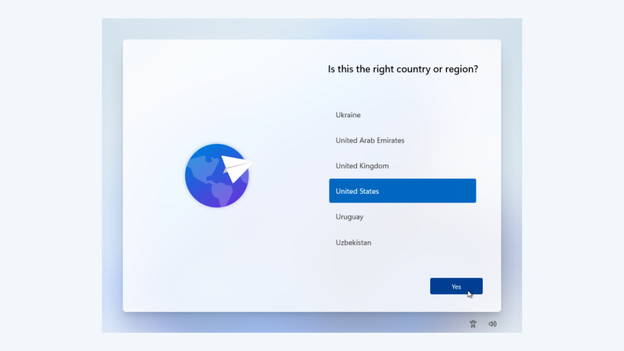
Step 1: boot your laptop, choose the language, and connect to WiFi
First, boot your laptop and charge it with the included charger. Leave your laptop plugged in during the installation process.
- You'll see a Windows window appear on your screen.
- Choose the language of your laptop.
- Select the timezone and keyboard layout. NL/QWERTY: United States, BE/AZERTY: France, QWERTZ: Germany.
- Now connect to the WiFi network. Without WiFi, you can't fully set up the laptop. If you aren't able to connect to WiFi, check whether your home router works well and restart it if necessary.
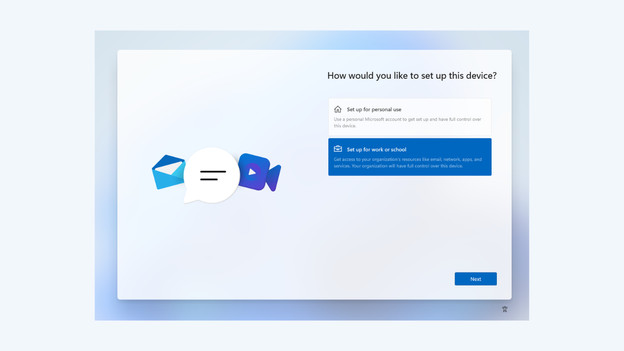
Step 2: log in with your Microsoft account
After going through the basic settings, log in with your Microsoft account.
- Choose a name for your laptop.
- Choose whether you want to set up the laptop for personal use or for school and work.
- Log in with your Microsoft account. Don't have an account? Create one. If you'd rather not create a Microsoft account, create a local account.
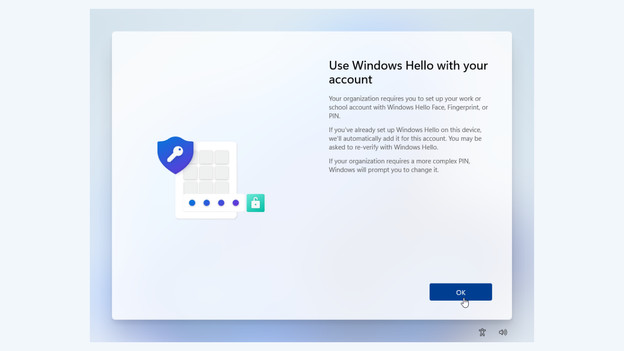
Step 3: follow the instructions from Windows
Go through the last steps of the setup.
- Create a password for your laptop. This can be a PIN code or a regular password. Do you have a fingerprint sensor or facial recognition? You can also add this during this step.
- Do you have an old backup of your previous laptop on your Microsoft account? Choose whether you want to restore the backup now, or if you want to set up the laptop as new.
- Choose the privacy settings for your laptop.
- Personalize the use of your new laptop.
- Choose whether you want to store your data in OneDrive or locally.
- After that, you'll get the option to buy or install a Microsoft Office suite.
- Already bought a suite? You can install it later.
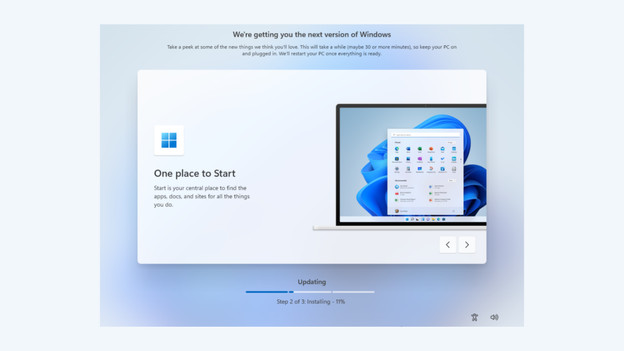
Step 4: update your laptop
After you're done setting up, your laptop will start a new update. This might take a long time, so make sure your laptop is connected to the charger. Is your laptop done updating? Your laptop is ready for use. Always check if you need to update certain software in the settings. Your laptop is often still busy with some installations and updates in the background, which sometimes causes your laptop to be slightly slower in the beginning.
Step 5: install software, transfer data, and activate Norton
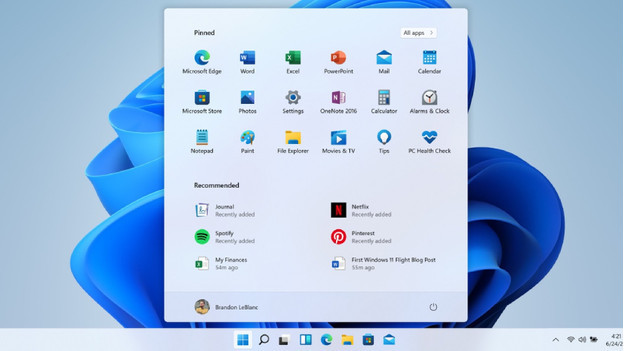
You've set up your laptop. Keep in mind that your laptop is often still busy with some installations in the background. That can cause your laptop to be a bit slower in the beginning. You can now get started with making your laptop ready for use. Think of which programs you'd like to use and download them from the Microsoft Store or the internet. After that, you can get started with them right away. If you bought your Windows laptop at Coolblue, you'll receive a free year of Norton. With Norton, you can protect your laptop from viruses and other malware.
Tips for after the installation
Sometimes, your laptop is still a bit slower than you would expect after setting it up. There are several tips that can help:
- Tip 1: give your laptop a few hours after setup, so your laptop can process all updates and installations in the background well. Sometimes, your laptop is a bit slower in the beginning because of that. As soon as your laptop has processed all updates, your laptop is faster again.
- Tip 2: there are often trial versions of software installed on the laptop. They sometimes provide unnecessary notifications and make your laptop slower. You can easily delete the unwanted software via 'Settings', 'Apps', and 'Installed apps'.
- Tip 3: choose which apps can boot right away when you turn on the laptop. Press 'Ctrl', 'Shift', and 'Esc' at the same time and navigate to 'Startup apps'. Choose which apps you want to boot right away.
Article by Deanne
Laptop Expert.