Written by Jelle
Edited on
16 April 2025
·
13:33
How do you solve problems with the webcam on your laptop?
Nothing is as annoying as a webcam that's not working when you're in a video call. But that's not always a reason to panic. Via the settings, you can solve many problems yourself. Read how to solve problems with your laptop webcam quickly and easily here.

Get started with solving webcam problems
It's important to run any possible updates and restart your laptop first. After that, try to solve the problem with these tips:
- Tip 1. Use the physical switch.
- Tip 2. Check the privacy switch.
- Tip 3. Try a different program.
- Tip 4. Give programs permission.
- Tip 5. Check the drivers.
- Tip 6. Use an external webcam.

Tip 1: use the physical switch
Some laptops have a physical switch or key combination to turn off the webcam. Check whether your laptop has such a switch or button. You'll usually find it near your camera or on the function keys at the top of the keyboard. You can recognize the button by the camera icon with a cross or line through it. Do you have an MSI laptop? Use the key combination Fn + F6 to turn on the webcam.
Tip 2: check the privacy switch
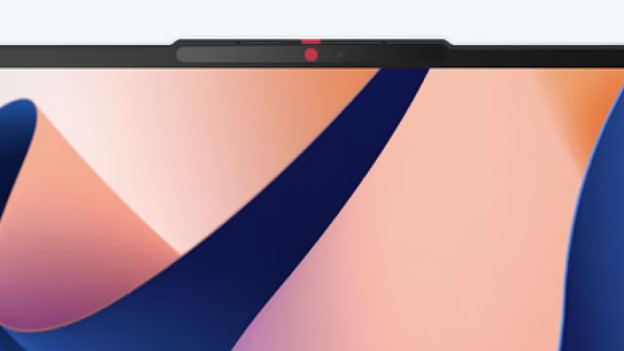
Some laptops have a built-in privacy switch. This is a switch that slides over the webcam of your laptop. Check whether this switch covers your camera and slide it to the side. The switch is often located directly above or next to the webcam.

Tip 3: try a different program
In some cases, the problem could be the settings of the program you're using to make the video call. Which is why you should try a different program first. Does the webcam work in the other program? Check the settings of the program you want to use. In the settings, make sure you've selected the right device under input devices.
Tip 4: give programs permission
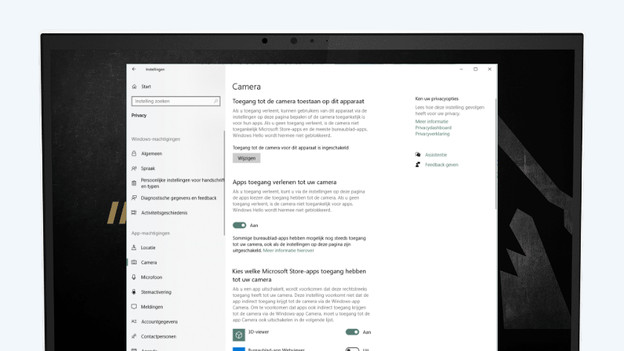
You have to give programs permission to use your webcam. You can check whether the program you're using has permission in the Windows settings:
- Open the Start menu with the Windows button.
- Open Settings and select Privacy.
- Click Camera under App permissions.
- Check whether Allow this device access to your camera is enabled.
- Find the program in the list to see if it has access.
Tip 5: check the drivers
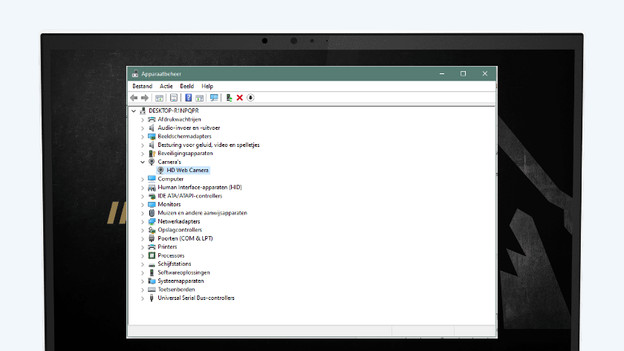
In some cases, the driver of the webcam is to blame. This is how you check the driver:
- Open the Start menu with the Windows button.
- Enter 'device manager' and press the Enter key.
- Find the webcam under Cameras.
- Right-click on the name of the webcam and click 'Update drivers'.
- In the window that pops up, click 'Search automatically for drivers'.
- Click 'Search for updated drivers on Windows Update' and update the drivers.
Tip 6: use an external camera
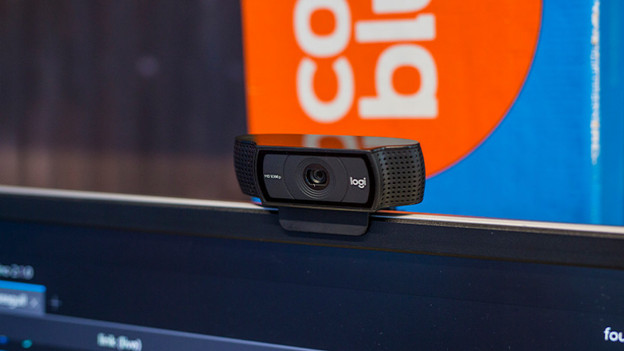
If your webcam still isn't working after these tips, it's probably a hardware problem. Is your laptop still under warranty? Have it repaired. If it's not, you could use an external webcam. That's usually a more affordable option than replacing the internal webcam of your laptop.